
People who get a new iPhone often wonder how to transfer all the content from one iPhone to another. Switching devices is easy, but some users worry that they can’t transfer their data successfully, as problems such as transfer failure and data loss may occur. So how can you transfer your data safely before switching iPhones?
To avoid these problems, consider backing up your current device first. This can be done using iTunes, iCloud, or a dedicated tool such as FoneTool. A backup is very important because it allows you to restore all your data to your new device and prevent data loss during the transfer. After the backup, don’t forget to remove the SIM card from your old iPhone and insert it into your new iPhone.
FoneTool: Transfer iPhone to New iPhone 16 Without Data Loss
I’m an Apple phone enthusiast. Whenever Apple releases a new phone, I can’t wait to swap out my old one, and the iPhone 16 is no exception. I’ve tried various methods to transfer data from iPhone to iPhone 16, including iCloud, iTunes, Quick Start, and some dedicated data transfer software, like FoneTool.
Among them, I highly recommend FoneTool, a powerful iPhone transfer and backup tool! It not only allows users to back up iPhone data for free but also helps in transferring data from an old phone to a computer, iPad, or new iPhone, and vice versa.
Below I have listed more advantages of FoneTool. FoneTool is now my first choice for backing up iPhone and transferring data.
Easy operation: Unlike iTunes and iCloud, which require many steps to backup and then restore data to a new iPhone, FoenTool allows you to transfer data to new iPhone directly without backup.
Fast transfer speed: iTunes and Quick Start used to take me hours to succeed using iTunes and Quick Start, but FoneTool made the process much faster and allowed me to switch to my new iPhone immediately.
One-click iPhone transfer: With a simple and easy-to-use interface, you can quickly complete iPhone migration with just a few clicks.
Preview and selective transfer: In addition, FoneTool supports you to selectively move videos, messages, photos, and contacts from old iPhone to new iPhone.
Effectively backup iPhone: It not only supports iOS data transfer, but also provides selective backup, full backup, data recovery and other functions to help you better manage iPhone data.
No data loss: FoneTool adopts USB cable transfer method, providing a stable and offline transfer process to make sure data safety.
Wide compatible: It supports all iPhone models and iOS versions, including the latest one.
Guide: Transfer Everything from from iPhone to iPhone 16
To streamline the process of transferring data from your old iPhone to your new iPhone, FoneTool offers a user-friendly one-click transfer feature. In just three easy steps, you can easily move all your data from your old iPhone to your new iPhone without the risk of file loss. Follow the steps below to make the data transfer simple and efficient:
Step 1. Connect both old iPhone and new iPhone to the computer with USB cables > Open FoneTool.
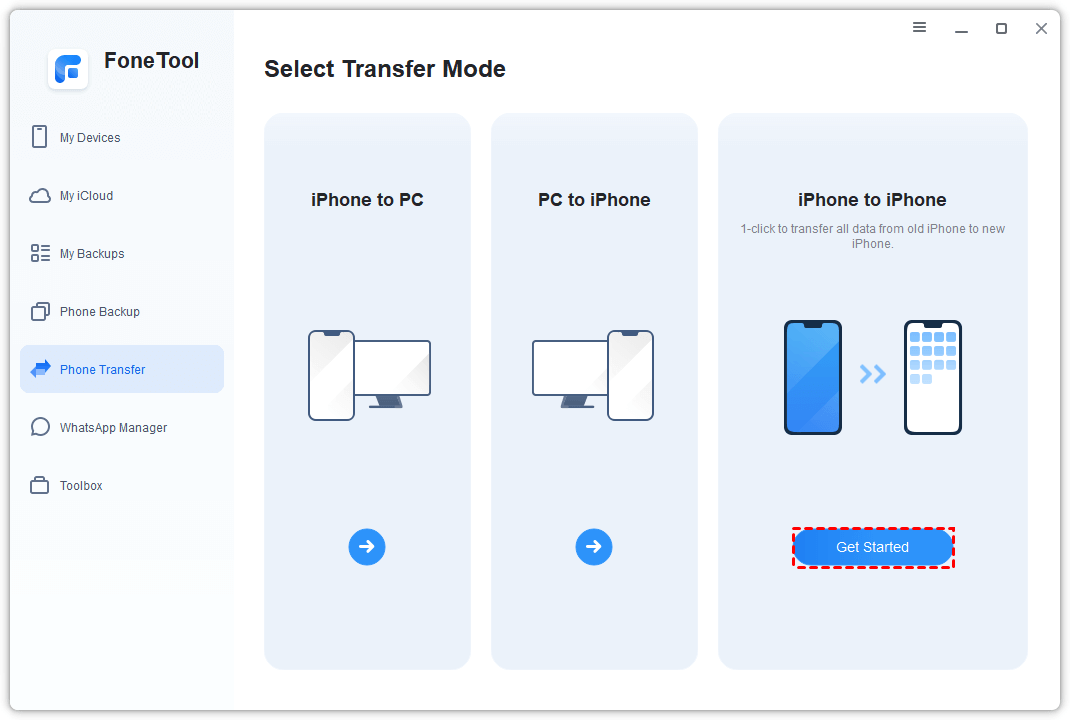
Step 2. Tap “Phone Transfer” on the interface > Move to “iPhone to iPhone” option > Click “Get Started“.
Step 3. FoneTool will automatically recognize your source iPhone and target iPhone, confirm them > You can tick the backup encryption to transfer your passwords, health and other privacy data > After that, tap “Start Transfer” to begin.
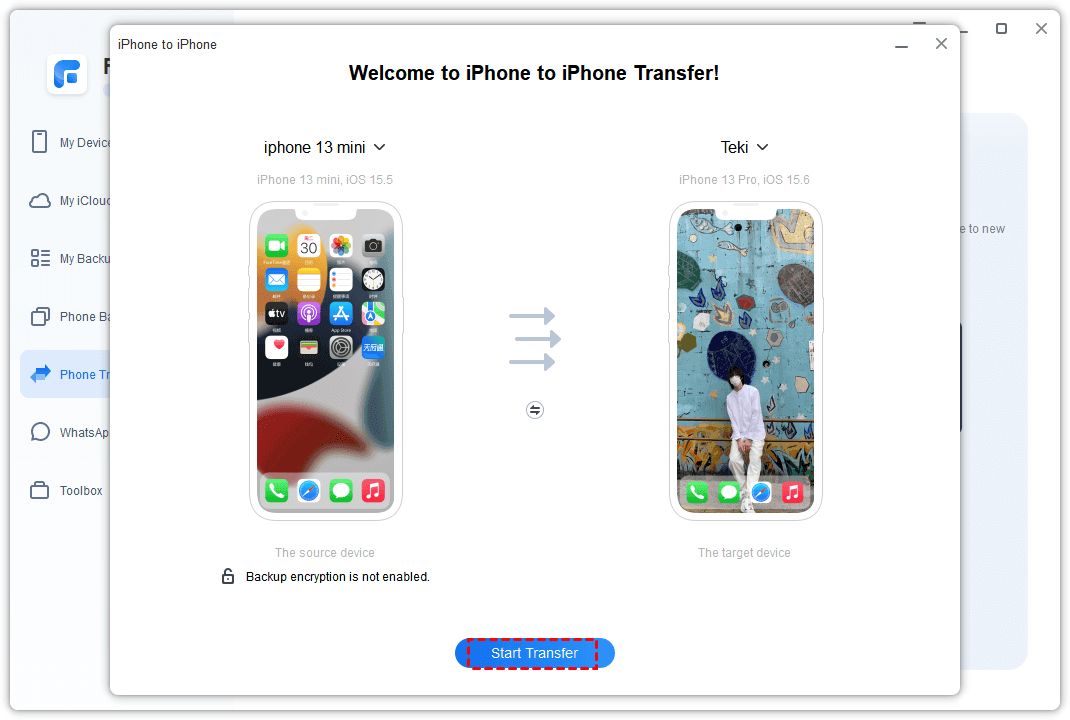
FoneTool can ensure that you can complete the data transfer safely and quickly without causing any data loss. If you still want to back up your iPhone data after this, you can go to “Phone Backup” > Choose the backup model, “Selective Backup” or “Full Backup” > And then follow the screen guide to backup iPhone easily!
Conclusion
The above article explains how to transfer data from iPhone to iPhone 16 without losing data. After trying different methods, we found that FoneTool would be the best choice for users. It is easy to use and provides data backup and data transfer functions at the same time. This provides double protection for your data. If you happen to switch to the latest mobile phone, use FoneTool to transfer your data in one click!


