
In today’s time, PDFs are the preferred way of exchanging and saving documents for professionals and industries. From crucial contracts and research papers to bills and scanned documents, PDFs provide your documents a professional look regardless of the device or software. But due to increasing PDF file accumulation, it is difficult to maintain them properly. Overfilled folders, bulky files, and unedible scans hinder the process and become bothersome.
This is where the cut is made with an efficient PDF handling tool such as Systweak PDF Editor. You’ll not only be able to edit PDFs in edit-friendly formats, but you’ll also have at your disposal highly efficient tools to organize, annotate, protect, and optimize your documents — all in one. By mastering just a few clever ways, you will revolutionize the process of using PDFs and free valuable hours from your working process daily.
In this article, we will explore the best methods for converting and managing your PDFs professionally, and how this can make your document process smoother, enhance teamwork, and increase productivity. As a student, corporate employee, or even an individual who deals with PDFs daily, these steps will enable you to have full control over your digital files.
Why Organizing a PDF File Matters
Handling PDFs might be easy, but without a system in place, a few files can suddenly feel like a chaotic mess. Here’s the time-intensive aspect of why attempting to organize your PDFs is a necessary inconvenience:
1. Find What You Need—Quickly: With the PDFs all over the place or with indecipherable filenames, the search for the document in question is slow. Your well-organized (file/folder structure) and well-formatted PDFs with bookmarks or explicit page orders will let you find what you are looking for right away, and without losing a second.
2. Work More Productively: When your PDFs are organized and easy to read, it’s easier to share documents with clients, colleagues, or classmates. Facilitate communication and avoid confusion by making it simple to add annotations, bookmarks, or divide files by subject.
3. Ensure Professionalism: Nice, crisp PDFs look professional. A proposal from a client, a report, and or a resume that is easy to read and doesn’t look abused says some good things about you and your work.
4. Simplify Archiving and Retrieval: PDFs accumulate over time. You can archive everything easily if/when you need to take a look again at those old contracts, research, or invoices, and it’s easy to retrieve those old files when you need to pick them back up!
5. More Efficient and No More Frustration: Working all over the place digitally can make it harder to work. No wasting time looking for PDFs and scouring folders when PDFs are organized, right at your fingertips, and ready when you need them.
In other words, it’s not just about tidiness — organizing PDFs can help you be smooth, smart, and fast and efficient throughout your entire workflow.
Top 5 Ways to Convert and Organize PDF Files for Better Workflow
Having discovered the value of organizing PDFs, we will now take a look at how to convert and organize PDFs to optimize your day-to-day work easily. These are easy-to-implement methods and are driven by features of Systweak PDF Editor.
1. Convert PDFs for Improved Accessibility
Occasionally, PDFs need to be converted to another format for use in work projects (so that you can edit, for example), while other times they need to be transformed for reading and presenting. Here’s what you can do to make your files more usable:
Convert PDF into Word, Excel, or PowerPoint
Want to modify the text, reuse data, or create a presentation from a report? The most straightforward method is to take a PDF and convert it into Word, Excel, or PowerPoint.
How to do it with Systweak PDF Editor:
- Open the PDF file in Systweak PDF Editor.
- Select the Convert option from its top menu bar.

- Select the output format you like (for example: Word, Excel, PPT).
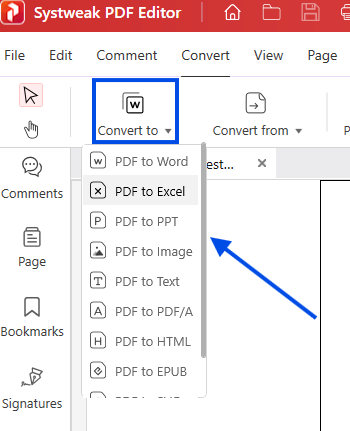
- Click Convert to the required format and choose to save the file.
Convert Documents to PDF
Converting Word, Excel, and image files to PDF in batch mode makes it versatile for use as a virtual printer or Publisher PDF.
Steps:
- Open Systweak PDF Editor.
- Go to Open PDF and select the document you need to convert.
- Click on Convert from and select the format to convert from, like DOCX, XLSX, PNG, or JPG.
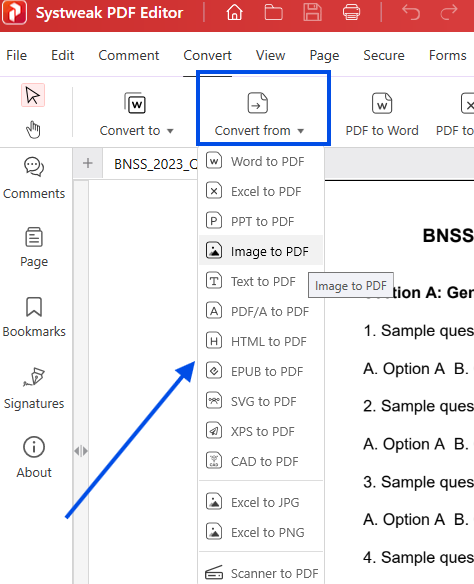
- Click Save as PDF.
Use OCR for Scanned PDFs
Have a scanned file that you’d like to view as an Adobe PDF file that can be editable, have searchable text, and more? That, and OCR (Optical Character Recognition).
Steps:
- Launch the PDF editor and open the scanned PDF.
- Click on the OCR Tool.
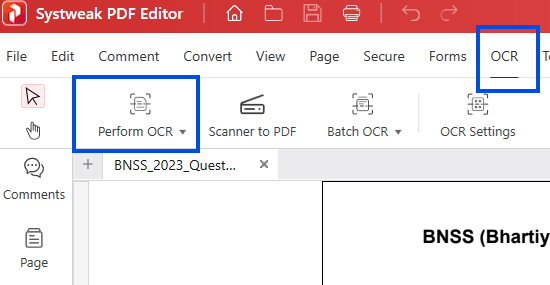
- Select your language.
- Run the tool to read the file and save the result.
By working smartly with files, you enhance access and the ability to edit, two fundamental pillars of an effective PDF workflow.
2. Merge or Split PDF Documents
Whether you have multiple related files or one single document that’s too long or unorganized, splitting or combining PDFs can dramatically improve how you work with information.
Combine Multiple PDF Files into One
Instead of working with multiple documents on a single topic, like receipts for an expense report, chapters of an e-book, or multiple parts of a client proposal, combine them into a single unified PDF.
Combining PDFs using Systweak PDF Editor:
- Launch Systweak PDF Editor.
- Select and open the desired PDF.
- Click on Tools on the top menu bar.
- Now, click on Merge PDF and add the files you want to merge.
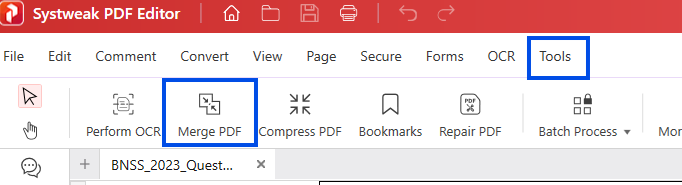
- If needed, rearrange them.
- Click on Merge, and save the merged document.
Merging combines your files even more, making sharing easy and more appealing.
Separate a PDF into Smaller Documents
If the single PDF has too much information, like a year’s report or a book scan, you can break it down into sections. You can then easily focus on pertinent sections and share specific bits.
How to split a PDF:
- Select Page from the top menu bar.
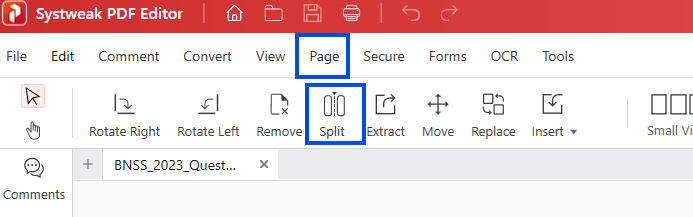
- Now, add a Page range to split the PDF.
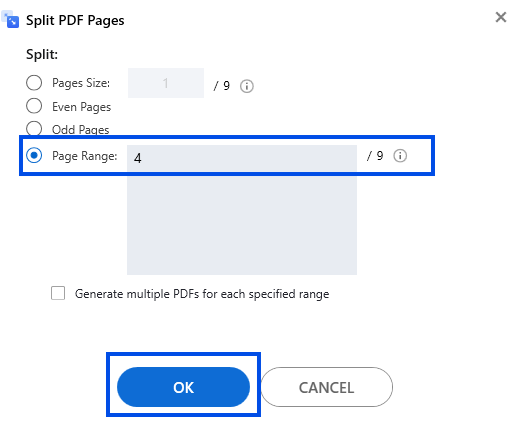
- Click on OK, and the tool will divide the files accordingly.
This is especially useful for students, lawyers, accountants, or anyone who always has to work with awkward documents.
Knowing how to merge and split PDFs puts you in control of having more management over how information is sorted, consumed, and shared.
3. Organize Pages Within a PDF
At other times, it’s not the file in general but the way the content works within the file. Organizing the pages of a PDF ensures your document flows from start to finish. From the pitch deck to the user manual and research paper, an organized PDF enhances readability and a professional look.
Reorder Pages
Got a slide out of position or a page that would be more coherent earlier or later in the document? Rearranging is the solution.
Steps with Systweak PDF Editor:
- Open the PDF and navigate to the Page on the top menu bar.
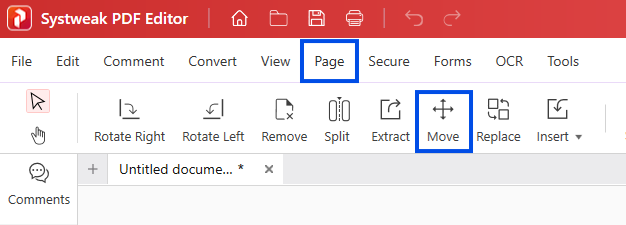
- Select Move and add the page number you want to move and to move from.
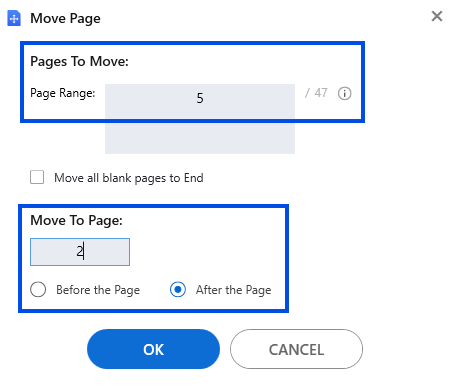
- Now, click Ok to secure the re-ordering.
Rotate Pages
Occasionally, scanned documents or inserted pages arrive sideways. Rotating their pages makes them easier to read and more professional.
Steps:
- Now, from the same tab, rotate the page you want.
- Pick Rotate Left or Rotate Right from the toolbar, or you can simply place the cursor on the desired page and select the icon to rotate left or right.

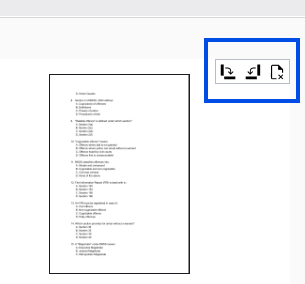
- Save and apply changes.
Delete Unwanted Pages
Delete blank or unnecessary pages to simplify your document.
Steps:
- From the same tab, select the unwanted pages.
- Click on Remove from the tab, or place the cursor on the page and click on the remove icon.
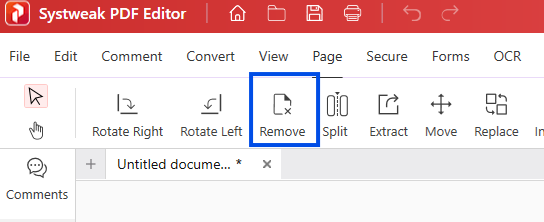
- Click Ok and remove the pages.
- Save the purified version.
Internal page cleaning not only makes it simpler to read your PDFs but also presents a refined and purposeful document to viewers or clients.
4. Make PDFs Easier to Navigate
When your PDF is many pages or hundreds of pages long, it’s important to make it navigable. Nicely formatted, interactive documents not only enhance readability but also enhance the user experience. Systweak PDF Editor: You can easily add navigational aids and markups to Systweak PDF Editor.
Include Bookmarks, Sub-Bookmarks
Bookmarks behave like a clickable table of contents. Particularly beneficial in manuals, reports, and eBooks, they enable users to leap to the relevant sections.
How to add bookmarks on Systweak PDF Editor?
- Scroll to the page or section that you’d like to annotate.
- Click on the Bookmark icon on the left panel of the page.
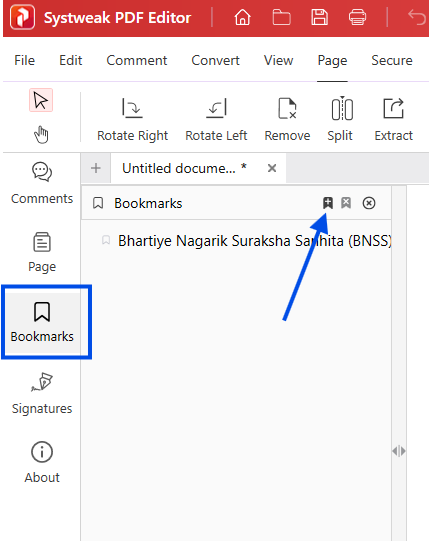
- Select the Add Bookmark icon and give your bookmark a title.
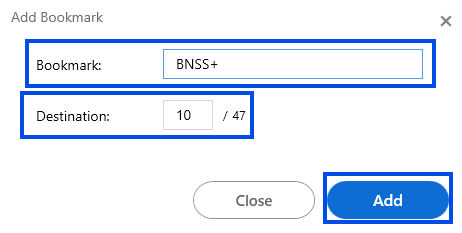
- Click Add and add the bookmark to your PDF.
This is especially useful for academic papers, legal documents, or any file that has several headings.
Annotate with Highlight, Comment, and Notes
Write your comments, directives, or changes directly onto the PDF. This is a great setting for co-working or for a team review session.
Steps:
- Select the Comment Tool from the toolbar.
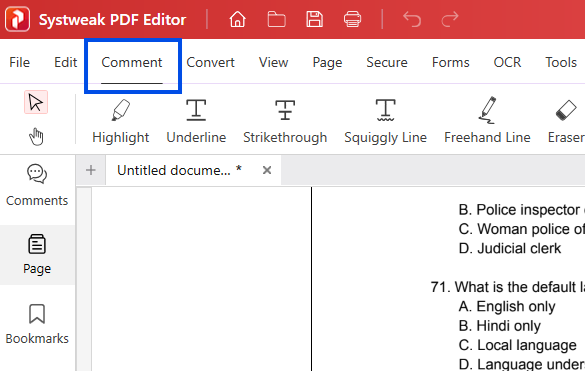
- Select the text and Highlight, Underline, Strikethrough, Squiggly line, Freehand line, Notes, Stamps, Shapes, or even Text.
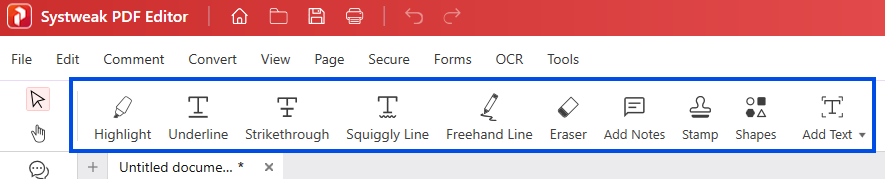
- Once you have annotated, save the file.
Annotations help support and ideas remain firmly attached to content, without back-and-forth in emails or chats.
5. Lock Down and Optimize PDF Files
PDFs may contain sensitive, critical, or confidential data. File transmission without security and optimization can leak data or result in file delivery failure because of large files. Systweak PDF Editor provides an easy method to lock down your material and reduce oversized files for transfer convenience.
Lock Down PDFs with Password Encryption
Concerned about unauthorized access or use of your files? Password protection keeps only the right individuals from opening or modifying your document.
Password-protect a PDF with Systweak PDF Editor:
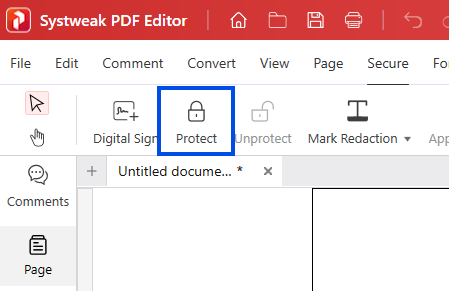
- Open your file and navigate to the Secure tab.
- Choose Protect from the panel and select Advanced security.
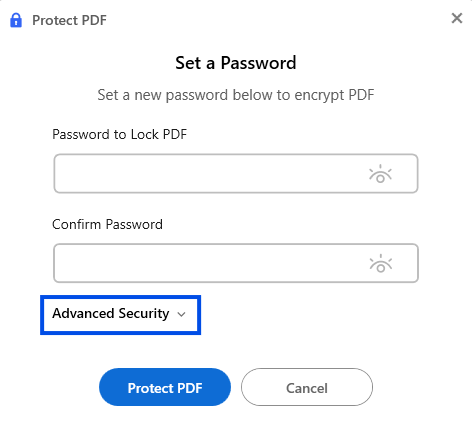
- Establish both an open password (to read the document) and a permission password (to limit editing or printing, if desired).
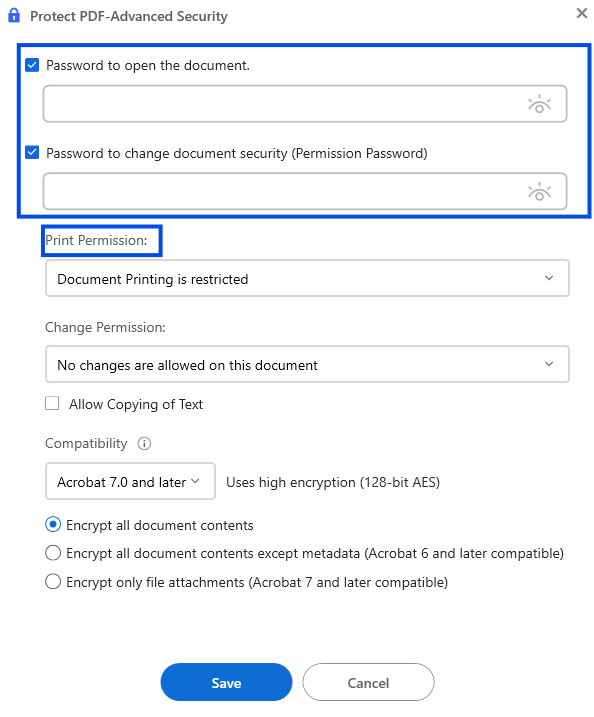
- Save the encrypted version.
This is useful most with contracts, financial statements, legal documents, and student records.
Optimize and Compress PDF Files
Large PDF files are most often cumbersome to email or upload. It’s worth compressing your file without losing quality for quicker sharing and storage.
Steps:
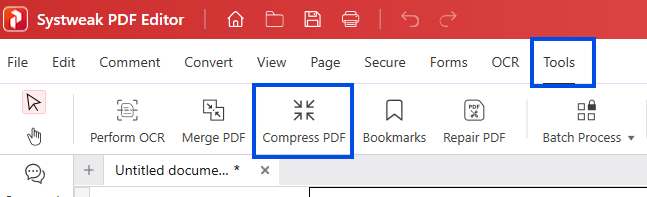
- Go to the Tools tab and select Compress PDF.
- Select your preferred compression level: High, Medium, or Low.
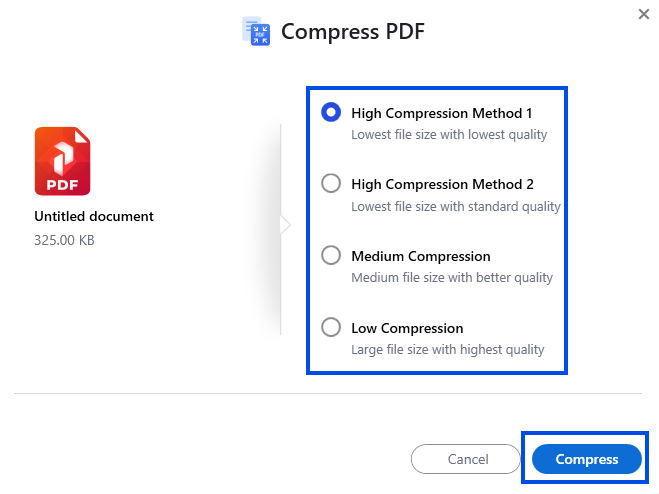
- Optimize and save the new file.
Utilize compression before posting onto websites, emailing as attachments, or cloud storage backup.
Bonus: Added Features for Power Users
You’re maybe one of those who deal with dozens of documents daily—contracts, reports, case files, or academic papers. Where common PDF tasks won’t cut it for you, you need faster, bulk-processing features and cloud access to make your overall workflow more streamlined. Systweak PDF Editor delivers both.
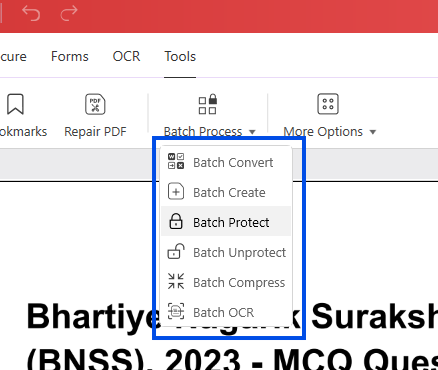
Batch Process PDFs
Want to watermark or convert several PDFs at once? The Batch Tool makes it easier by acting on several PDFs at a time.
Standard batch operations are:
- Converting: Convert batches of PDFs to Word, Excel, or image files in one go.
- Merging: Combine batches of PDFs into one master file.
- Watermarking: Add branding or confidentiality stamps on a batch of documents.
- Encryption: Lock lots of files with passwords at one time.
How to use Batch Tool:
- Open the file in Systweak PDF Editor and select Batch Process from the Tools tab.
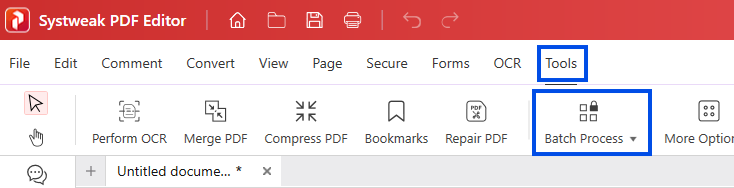
- Choose the action you want to perform (Convert, Merge, Watermark, Encrypt, etc.).
- Insert the PDF documents you want to add.
- Configure your settings and click on Start.
This tool is a blessing in disguise for businesses, lawyers, and administrative personnel dealing with mundane tasks.
Final Words
In a world of digital documentation devouring work and leisure, how you format your PDF files can help or hold you back from productivity. From page conversion and organization to document security and optimization, every action helps to simplify your workflow and get rid of digital clutter.
Systweak PDF Editor makes this conversion process easy. You may be a student researcher preparing studies, a professional handling contracts, or an ordinary person assembling personal documents—either way, the program is packed with all the tools you need, bundled within one universal, intuitive interface.
By integrating clever PDF habits into your process, such as adding bookmarks, compressing file sizes, encrypting confidential data, and adding OCR, you save time, stay productive, and all documents are ready to present. No more constant flipping through an entire collection of disparate apps or drowning in a sea of unorganized files.
And so if you want to take the way that you work with PDFs to the next level, try Systweak PDF Editor and get things in your grasp today.
FAQs (Frequently Asked Questions)
Q1: Can I edit scanned documents with Systweak PDF Editor?
Answer: Yes. Using the OCR (Optical Character Recognition) option will enable you to edit the scanned PDF to make it editable as well as searchable.
Q2: How do I merge two or more PDFs into one document?
Answer: Utilize the Merge PDF option. Add your files, arrange them, and hit “Merge.” The end product will be one file.
Q3: Is it possible to split a large PDF file into smaller files?
Answer: Yes. Split by size, page numbers, or other objects using the Split PDF tool.
Q4: How do I reorganize pages in a PDF?
Answer: Go to the Page tab, and you can rearrange, rotate, or delete pages with a simple interface.
Q5: Can I password-protect my PDF before I share it?
Answer: Yes. Click on the Secure tab and select Encrypt with Password to set viewing/editing restrictions.
Q6: Is there batch processing in Systweak PDF Editor?
Answer: Yes. Use the Batch Tool to convert, watermark, merge, or encrypt many PDFs, saving you time and the trouble of trying to open them one by one.
Q7: How can I reduce the size of a large PDF file?
Answer: You can easily save your files and share them in no time with the Compress PDF feature.


