
Have you ever turned on your computer only to find that it wouldn’t start and your important data seemed to be lost forever? Do not panic! Bootable data recovery software – MyRecover might be just the savior you need.
This review will explore how MyRecover helps us recover data when PC won’t boot. Whether it’s a crashed hard drive or a stubborn external disk, stay tuned to discover if MyRecover is your go-to solution for recovering lost data.
Overview of MyRecover and Its Features
MyRecover has emerged as a noteworthy bootable data recovery software that allows you to create WinPE bootable disks for data recovery. With it, you can recover data from a normal working computer but also from a crashed computer. You can choose to create a CD/DVD or USB bootable disk to easily boot the computer.
Here are a few of its key features:
User-friendly interface: MyRecover is known for its user-friendly design. Even if you’re not tech-savvy, you can easily navigate through the recovery steps.
Recover data when PC won’t boot: If your computer won’t boot, MyRecover lets you make a bootable CD, DVD, or USB drive to recover your data effectively.
Extensive file type support: MyRecover can recover over 200 different file types, including images, videos, music, emails, and compressed files.
Two scanning methods: The software provides two scanning options – Quick Scan and Deep Scan. Quick Scan is specifically designed to locate deleted data, while Deep Scan is capable of searching for other types of lost data.
Support many data loss scenarios: Whether you faced a system crash, accidentally deleted files, formatted a drive, or encountered a virus attack, MyRecover can assist you in all these scenarios.
Preview before recovery: You can preview files to check their condition before giving them back to your computer.
Work with various devices: Support recovery of files from internal/external hard drives, USB sticks, SD cards, etc.
Broad compatibility: The software works with recent versions of Windows like 11, 10, 8, 7, and Server, and supports file systems such as NTFS, FAT16, FAT32, and ReFS.
Running MyRecover to Recover Data When PC Won’t Boot
To see how good MyRecover is at recovering important data when your PC won’t boot, we conduct a real test and create a scenario. First, we create a bootable USB drive or CD/DVD using MyRecover. Secondly, boot our crashed computer from the created bootable media and recover the files.
Test Preparation:
We simulated a scenario where the PC would not boot due to a corrupted operating system. Then recover important documents, multimedia files, and system files lost due to computer failure to boot.
Test Procedures:
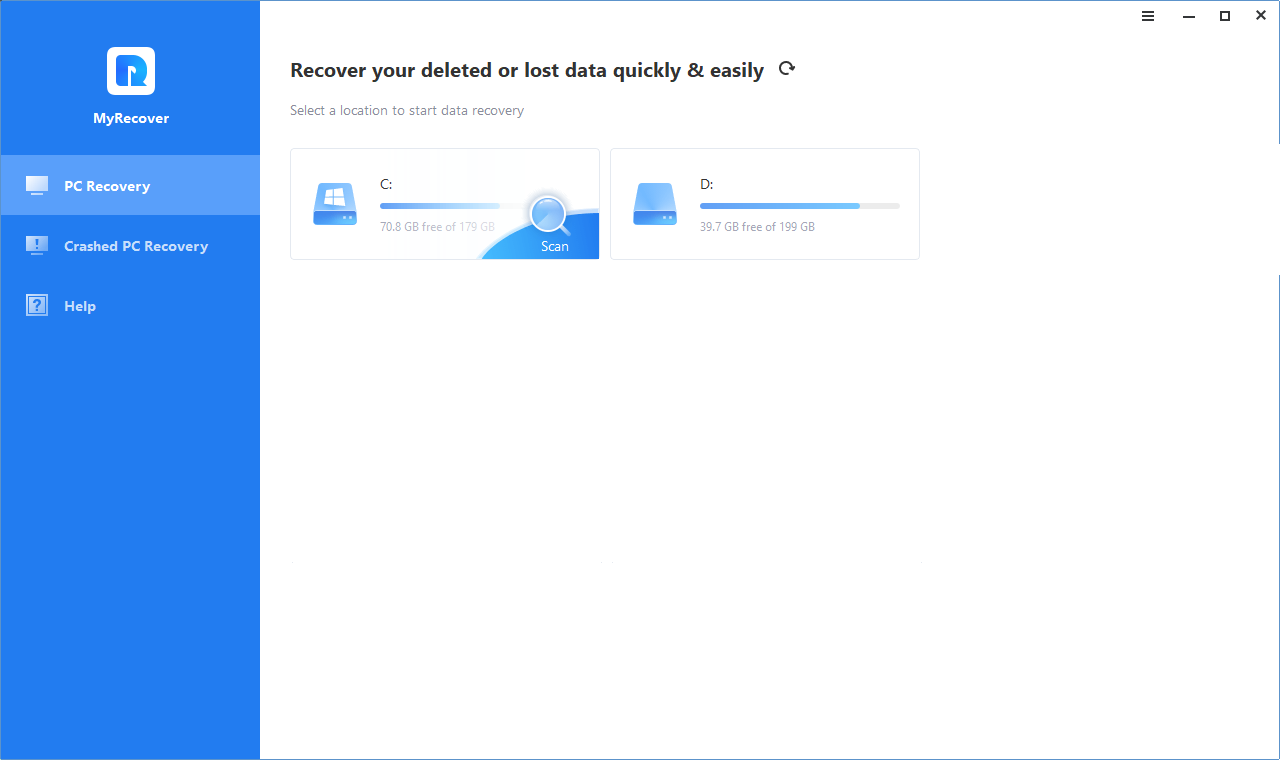
After opening MyRecover on the running Windows computer, we click Crashed PC Recovery in the main interface.
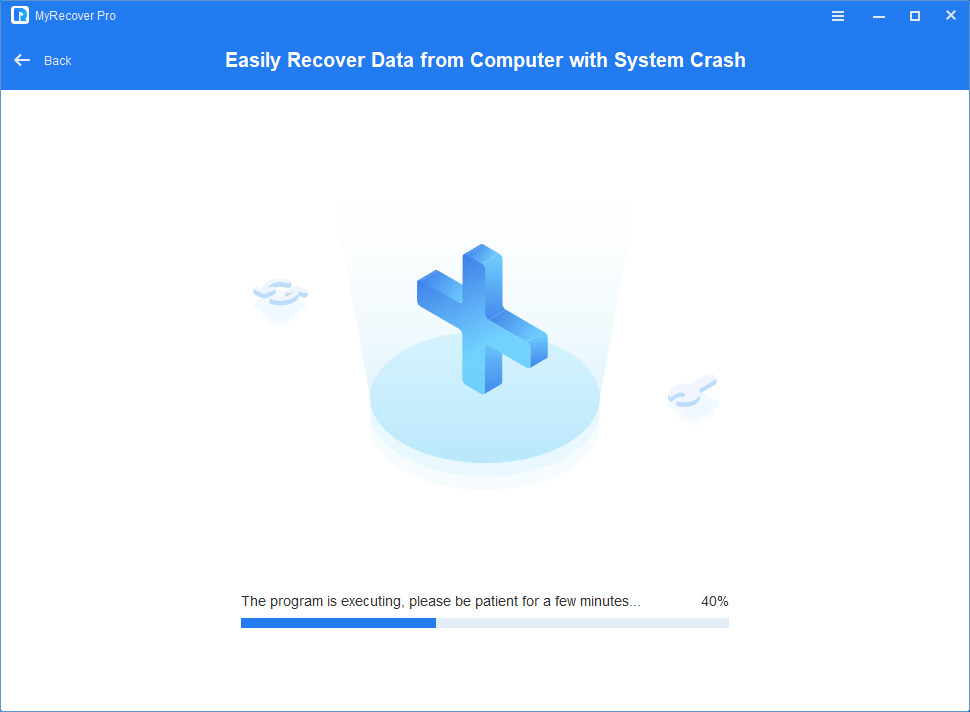
It will ask us to select a way to create the WinPE bootable disk according to our needs and click Execute. We choose USB Boot Device to create a bootable USB device. Also, Add Drivers allows us to manually add other necessary drivers to the bootable disk so that more devices can be used after booting WinPE.
![C:\Users\ashe\Pictures\图片\New folder\execute[1].png](/wp-content/uploads/2024/12/img_675c3c83c9b97.png)
When we select the method and continue, an information window will pop up. The USB flash drive needs to be formatted and all data on it will be lost. So we back up our data immediately and click Yes to continue.
![C:\Users\ashe\AppData\Local\Microsoft\Windows\INetCache\IE\A5W4PXIE\confirmation-window[1].png](/wp-content/uploads/2024/12/img_675c3c8420428.png)
The process of creating a WinPE bootable USB drive will take a few minutes. Once completed, we receive a success message and the bootable USB has been created.
To recover data from computer that won’t boot, we insert the bootable disk into the computer. Go into BIOS/UEFI and change the boot order under Boot Menu.
After booting the crashed PC from the bootable disk, in the main interface of MyRecover, we hover the mouse over the target drive and click Scan.
During the scanning process, we can use the Filter button to quickly search for the required files. Also, before recovering the listed files, we can click on the Preview button to preview them first.
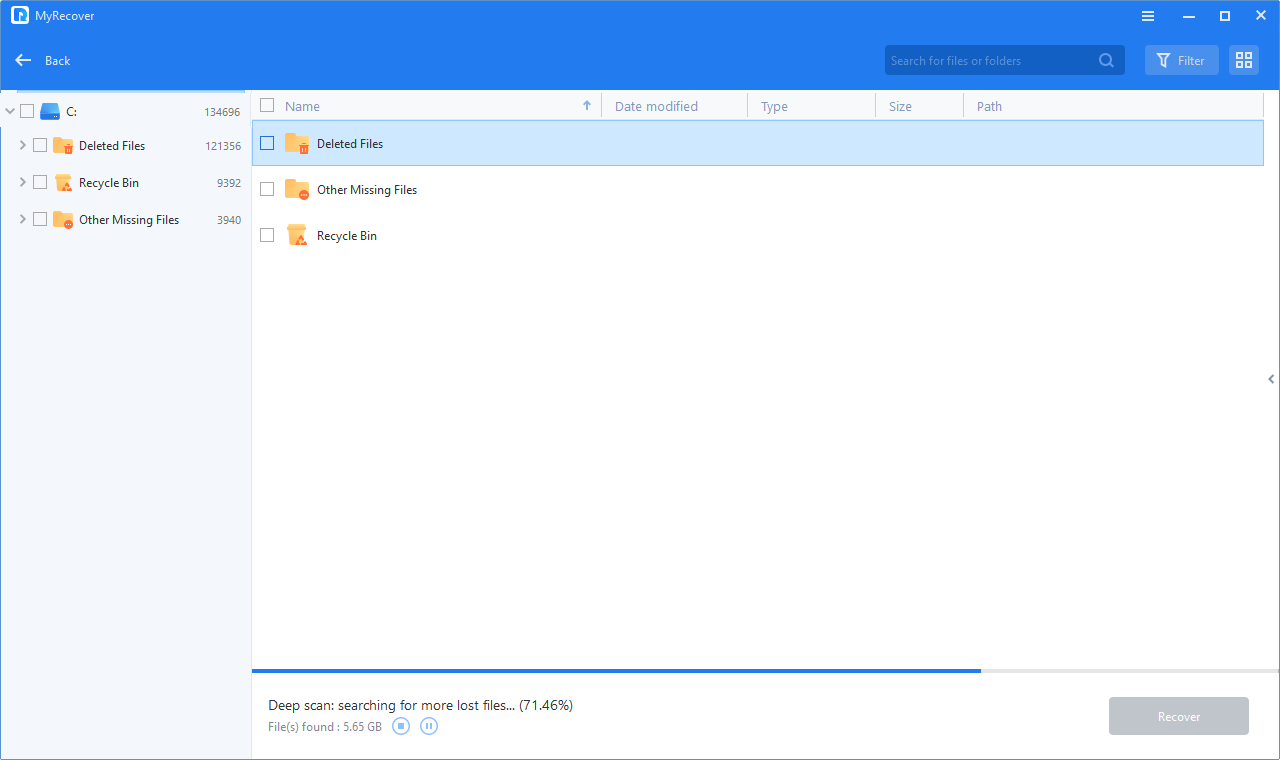
We try to recover an MP4 video. Then, we click Recover x Files and select a new location to save the recovered data.

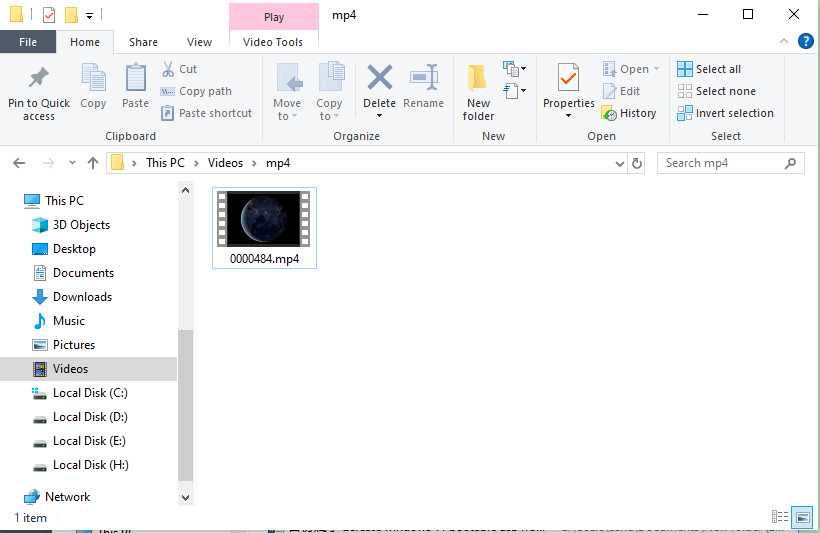
Finally, we go to check the location of the recovered MP4 video. MP4 video has been successfully recovered without missing anything.
Test Results:
MyRecover has proven to be very effective to recover data when PC won’t boot. We found that it recovered 95% of our files, including all critical documents and most media files. The average recovery time is approximately 5 minutes, depending on the amount of data retrieved.
Conclusion
MyRecover is an invaluable bootable data recovery software when your computer won’t boot but you desperately need to access your data. Whether it is precious photos or even lost important working documents, MyRecover can handle it smoothly.
The software works directly with your hardware, such as USB flash drives and external hard drives, making the data recovery process easier. MyRecover is worth trying when you need to recover data when PC won’t boot.


