
About Multiple Google Drive Accounts
Google Drive only provides 15GB of free cloud storage per user, which is not enough to hold all of the data from an average day. You can create more Google Drive accounts to expand your amount of free storage.
But, there are times when you’ll need to move Google Drive to a different account for a variety of reasons, like sharing resources with colleagues or combining personal and professional data. This article explores the importance of data transfers between Google Drive accounts, explains the reasoning behind them, and offers a thorough walkthrough of the process. Just check it out now.
Why Migrate Google Drive to Another Account?
Migrating Google Drive data to another account can be necessary for several reasons:
- Consolidation of Files: Many individuals and businesses maintain multiple Google Drive accounts, often leading to scattered files and data. By consolidating these files into a single account, users can streamline access and management.
- Account Transition: Whether changing jobs, moving to a new educational institution, or switching personal email accounts, transferring data ensures that important files are retained and easily accessible.
- Storage Management: Google Drive offers limited free storage, prompting users to manage their data efficiently. Migrating files to another account can help balance storage usage and avoid additional costs.
- Collaboration and Sharing: Businesses and teams often require centralized access to documents and resources. Moving files to a shared or organizational account facilitates better collaboration and resource management.
- Data Backup: It’s imperative to have a backup of all important files. Moving data to a different account adds another degree of protection against unintentional deletion or loss.
These scenarios underscore the importance of understanding how to transfer everything from one Google Drive to another efficiently.
Best Free Google Drive to Google Drive Migration Tool – MultCloud
MultCloud proves to be an invaluable tool when it comes to file transfers between Google Drive accounts. The process of managing all clouds in one place is made easier with MultCloud, a web-based multiple cloud storage manager.
You can take advantage of the following advantages and capabilities with MultCloud:
- Different Clouds (30+). It allows the smooth file transfers between various cloud storage accounts and services, such as Dropbox, OneDrive, Google Drive, Amazon S3, pCloud, MEGA, MediaFire, ownCloud, iCloud Drive, iCloud Photos, 4shared, Icedrive, IDrive, and more.
- Direct Migration: MultCloud allows you to migrate, backup, transfer, sync files between clouds directly without downloading and uploading manually.
- All or Selective Migration. You can migrate everything or only certain files from one Google Drive to another account as you want.
- File Management: Organize, search, and manage files across multiple cloud drives through a single, unified interface.
- Data Security: MultCloud ensures secure data transfers with advanced encryption protocols, safeguarding your privacy information.
How to migrate Google Drive to another account easily and quickly, check the following solution.
How to Transfer Everything from One Google Drive to Another?
Transferring data between Google Drive accounts using MultCloud is a straightforward process. Here’s a step-by-step guide:
1. Sign Up and Log In: Create a free MultCloud account and log in to the Dashboard.
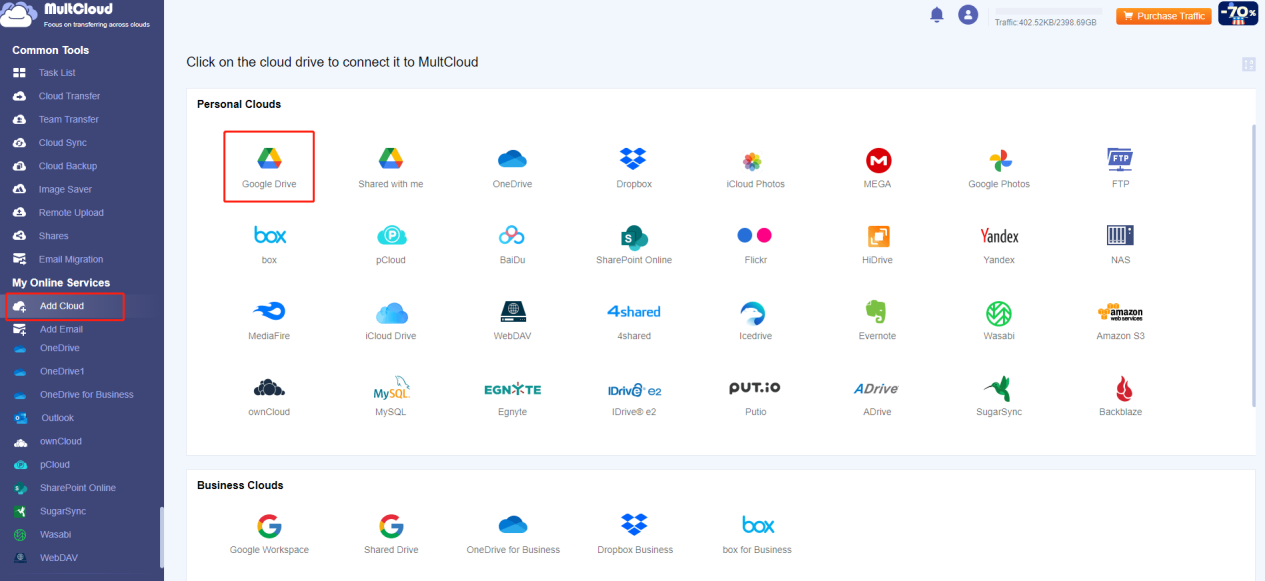
2. Add Google Drive Accounts to MultCloud: Click on “Add Cloud” and select Google Drive. Follow the prompts to authorize MultCloud to access your Google Drive account. Repeat the procedure to add another Google Drive account.
3. Create A Transfer Task: Go to the “Cloud Transfer” section. Choose the source Google Drive account from which you want to transfer files and another Google Drive account to receive the files.
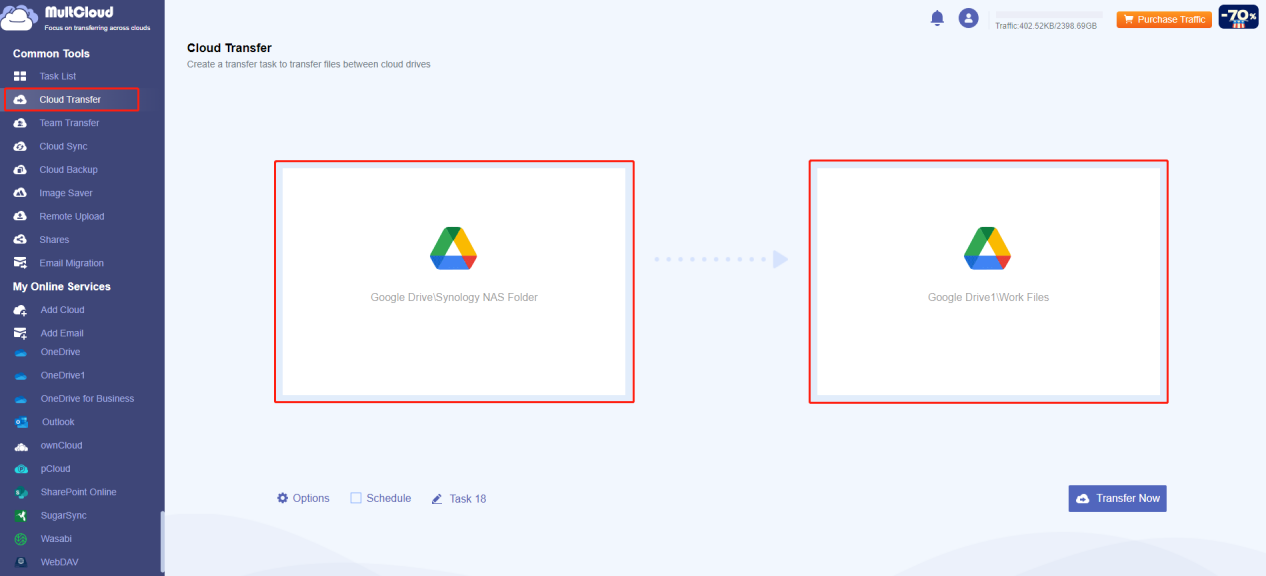
4. Start Transfer: Click on “Transfer Now” to start the Google Drive to Google Drive migration process. MultCloud will handle the rest, moving your files from one account to the other seamlessly.
Tips:
- You can configure the transfer methods, preserve the file modification date, delete all source files after the transfer is completed, retain all transferred files in one folder, and more with the aid of the Options. In addition, you may organize Email and Filter to make the process easier to do.
- The Schedule feature is able to conduct the migration on a daily, weekly, or monthly basis. This allows you to regularly create fresh updates from Google Drive.
5. Monitor Progress: You can monitor the transfer progress in real-time in Task List. Once the transfer is complete, you’ll receive a notification if you configured Email notification.
Summary
Anyone managing several digital storage places must understand how to move Google Drive to a different account. Whether for commercial cooperation, personal organizing, or data security, moving files between Google Drive accounts can expedite processes and protect sensitive data. Users can rely on MultCloud to provide a dependable solution for their cloud storage needs, as it streamlines and simplifies the process.


