
Like most people, I rely heavily on PDF files to record and share critical information. More often than not, contracts, reports, and financial statements remain as PDF sets. And when such vital information is perceived as inaccessible, a person’s nerves could be destroyed. It could happen due to deletion by accident, a program crashing before you even got to save it, or just a corrupted file. The panic is real. While I am perfectly fine with basic PDF tasks, I lost terrain in PDF file recovery until I gave some thought.
Here is the good news: PDF recovery is not as gnarly as we might think. Whether I have to recover PDF documents that I have deleted or recover PDF documents that have been lost due to another cause, methods to do so are available. Most of the time, I managed to locate those important PDFs again, given that I got the approach and tools right.
Can Deleted/Lost PDF Files be Recovered?
Absolutely, they can be recovered. Even without a backup, you can recover deleted PDF files, but several conditions need to be met:
1. New data hasn’t overwritten the space: When we delete a file in Windows, it doesn’t vanish instantly. It first goes to the Recycle Bin. If I empty the Bin, the file’s data lingers on the drive, marked as available space until new data gets written over that specific location.
2. The file wasn’t on a TRIM-enabled SSD: Here’s a potential snag. If lost PDF was on a Solid-State Drive (SSD) with TRIM active, recovery chances plummet. TRIM tells the SSD to immediately wipe blocks holding deleted data, making PDF recovery much harder, often impossible, after permanent deletion.
3. The storage device isn’t physically damaged: If the drive holding my lost PDF is physically broken and our computer can’t recognize it, standard software won’t help. We’d need a professional data recovery service, which can be costly.
After knowing this, we will introduce you to the best way to recover PDF files on Windows PC in the following sections.
How Can I Retrieve Deleted PDF Files?
Step 1: STOP Using the Drive Immediately.
This is non-negotiable. The moment I realize I’ve lost a PDF, I stop all activity on that drive. Why? Every new file saved, program installed, or even temporary file created risks overwriting the space where my deleted PDF resides. Continuing to use the drive is the fastest way to make PDF recovery impossible. Minimize actions to maximize my chance to retrieve PDF documents.
Step 2: Check the Recycle Bin.
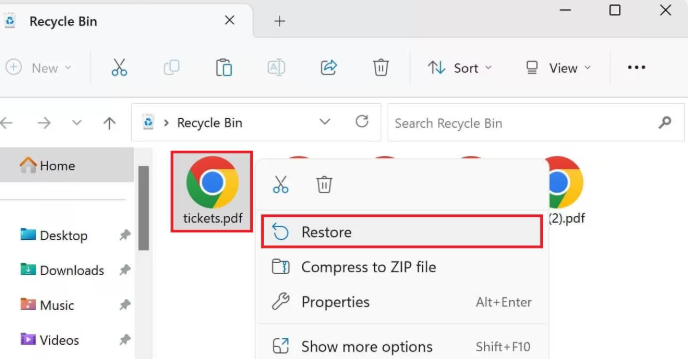
This is the simplest solution and often overlooked! Unless I used Shift+Delete or a file-shredding program, my deleted PDF likely sits right there in the Recycle Bin.
What did I do?
- Open the Recycle Bin.
- Quickly browse the list or use the search bar to find my deleted PDF file(s).
- Simply right-click the file and select “Restore”. It magically reappears in its original location.
Step 3: Check My Backups (Cloud & Local).
Before diving into software, I always check my backups. Did I save the PDF to OneDrive, Google Drive, Dropbox, or an external hard drive? I log into my cloud storage or plug in my backup drive and search diligently using their built-in search functions. Finding a copy here is the quickest and safest way to recover lost PDF files.
Step 4: Recover PDF Files with a Dedicated PDF Recovery Tool.
If the Recycle Bin is empty and my backups come up short, a powerful PDF recovery tool is my essential solution. After trying several, I found RecoveryFox AI consistently delivers. It’s designed specifically to recover deleted, lost, and formatted PDF files with impressive efficiency. Even if I permanently deleted the PDF and emptied the Recycle Bin, this software still worked well to retrieve PDF documents from the hard drive.
In my hand-on testing, I found that it offers more useful features such as:
- Recovers a wide range of lost files (photos, videos, audio, documents) from emptied Recycle Bins and hard drives.
- Handles data loss scenarios: accidental deletion, formatting, system crashes, and virus attacks.
- Boasts a high success rate for file recovery.
- Works flawlessly across Windows 11, 10, 8.1, 8, 7, Vista, and Server editions.
- Uses a safe, read-only mode ensuring my original drive isn’t damaged during the PDF recovery process.
Here are the detailed steps I took to recover deleted PDF files using RecoveryFox AI:
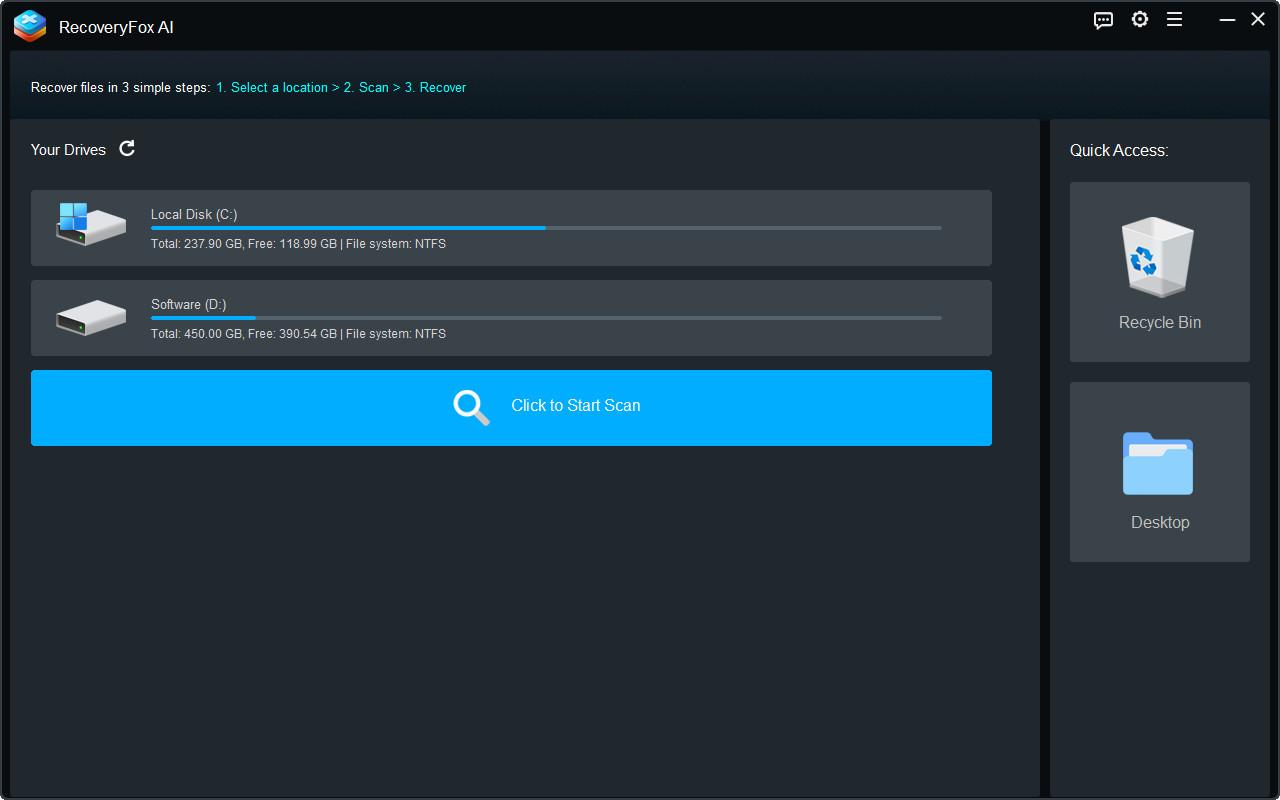
- Select the Drive.
When I launch the software. Its clear interface shows my drives. I select the specific drive (C:, D:, external drive, etc.) where my PDF was lost and click “Click to Start Scan”.
- Preview Found Files.
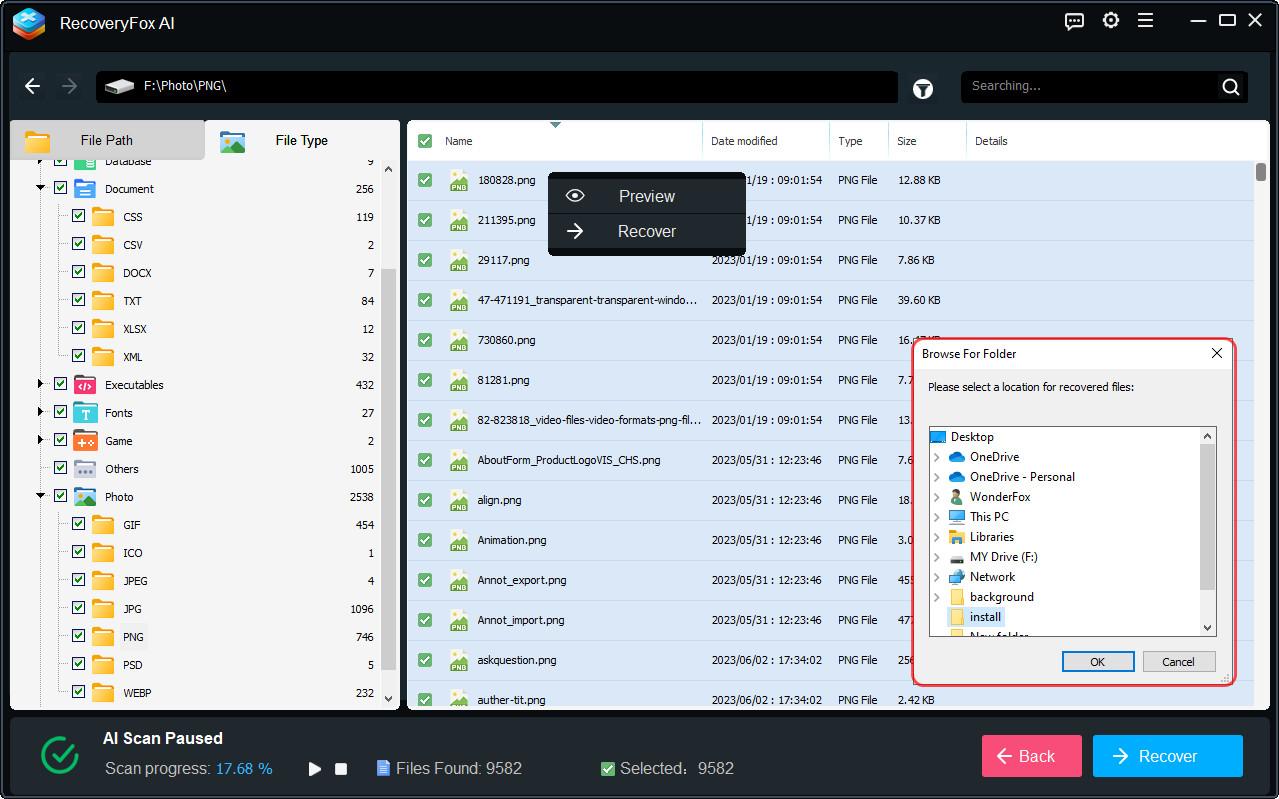
As the scan runs, I see progress and files found. Crucially, I can preview found files before recovery. I browse the results, filtering for PDFs, to locate my lost document.
- Recover Safely.
Once I find my target PDF, I select it and click “Recover”. Crucially, I save it to a different drive (e.g., save a lost D: drive PDF to my C: drive or an external USB). Never save recovered files back to the same drive I’m recovering from – it risks overwriting other lost data!
What Will I Do To Protect My PDF Files From Deletion And Loss?
After trying to recover lost PDFs, I found that prevention is always the ultimate both in terms of saving energy and time, I think I would take the following measures to protect important documents more than just PDFs:
- Backup Religiously: I will adhere to the 3-2-1 rule: 3 copies, 2 types of media (e.g., computer + external drive), and 1 offsite (cloud storage like OneDrive or Backblaze). Whenever possible, make backups automatic.
- Use Robust Antivirus: I will always make sure to keep antivirus software installed with real-time protection activated to block malware as it attempts to corrupt or delete files.
- Safely Remove Hardware: I will always eject or safely remove hardware before unplugging USB drives or external SSDs/HDDs.
- Regular Drive Maintenance: Occasionally, I will run Disk Defragmenter built into Windows for my traditional hard drives. More importantly, I will keep checking my drives for errors using `chkdsk` from Command Prompt or whatever internal drive tools are available.
Final Words
Data loss is a common and unpredictable phenomenon. While the data recovery process may seem complex and costly, the methods detailed in this article are reliable and easy to use. They enable me to complete PDF recovery in a few simple steps without risks or complications. Moreover, all the methods on how to recover PDF files are cost-effective and completely secure.
Whether you have accidentally deleted an important PDF file or experienced file formatting, investing in reliable data recovery software – RecoveryFox AI is the best choice.
Finally, to prevent permanent loss of deleted PDF files, it is crucial to prioritize backups!


