

PDF is considered as an ideal document format for information transferring on the Internet because of its ability to avoid unexpected modification. Nevertheless, you may be upset with a PDF file that can not be edited when you desire to save some images from PDF e-books or literature materials for working and teaching use.
In order to extract an image or multiple images from a PDF file, you may need to get a professional PDF editor. There are 2 of the best PDF editors available: the dedicated PDF editor SwifDoo PDF and the Adobe Acrobat.
How to Extract Images from a PDF File to a Word Document with SwifDoo PDF
SwifDoo PDF is a versatile PDF editor applicable to Windows 10, Windows 8.1 and Windows 7 operating systems, which enables you to edit, convert, annotate, sign, protect your PDFs, extract images and texts from a PDF file, and more. Take a look at how to extract one or more images from a PDF file to a Word document.
You can copy an image in SwifDoo PDF and paste it to an opened Word document, or save all images into a local folder and insert them from the folder when you are editing a Word document.
Step 1: Open your PDF file by clicking Open under SwifDoo on the top left of the program window, or drag and drop your PDF file into the program window directly.
Step 2: Place the cursor onto the image that you need, right click the image to choose Copy Image or Save as Image.

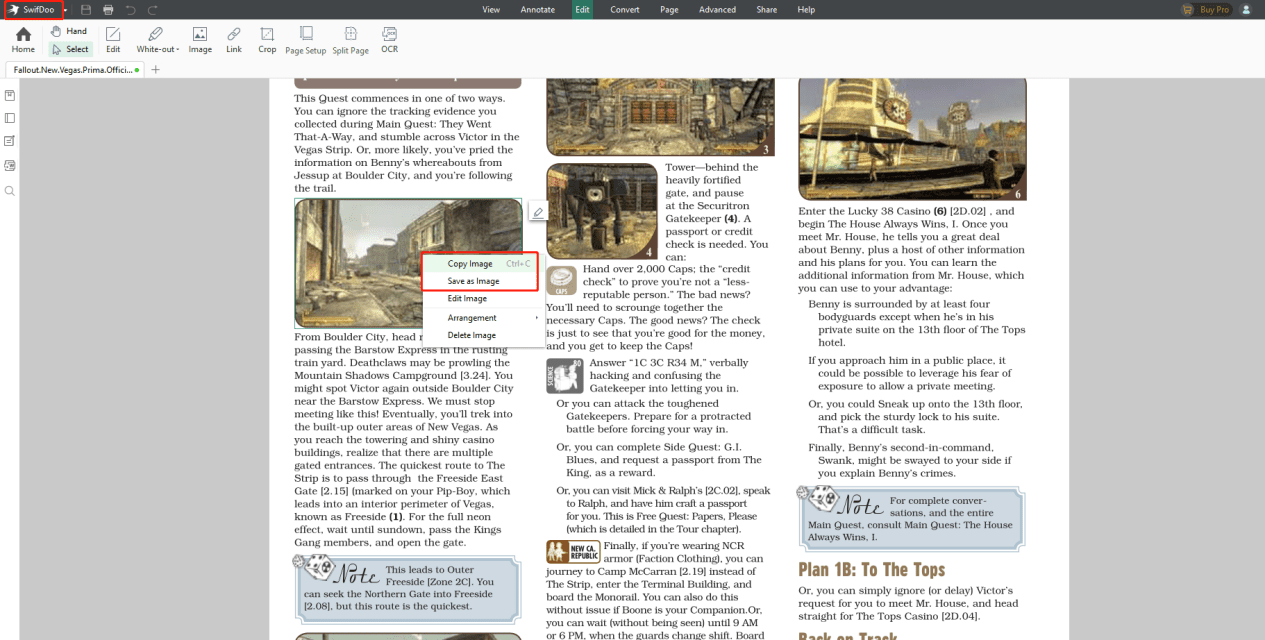
Step 3: Paste or insert the images into your Word document.
How to Extract Images from a PDF File to a Word Document with Adobe Acrobat
Adobe Acrobat is developed by the PDF software giant Adobe Inc. With Adobe Acrobat, it will be easy to extract images from a PDF file within a few clicks.
Step 1: Launch Adobe Acrobat and open your PDF file in the program.
Step 2: Go to choose Tools, and then click on Export PDF.
Step 3: Click Image and select the image format that you want to output. You can set other extraction requirements by clicking the gear icon.


Step 4: Tick the Export all images and click Export.
Step 5: In the pop-up window, select the output path and save the images.
Step 6: Switch to your Word document, insert the images from selected path.
For anyone who needs a PDF tool, these 2 PDF editors introduced above are recommended. Otherwise you can search for an online PDF editor such as PDF Candy to accomplish extracting images from a PDF file and some other PDF file tasks like add a link to pdf, but there are always some limits for all online tools in task quantity and file size.
Adobe Acrobat is a good option to extract images from PDF files, and perform various other PDF tasks as well. However, the price may be relatively high for most users, and that�s why there are a lot of alternatives in the market.�
Check out: If you are looking to Edit PDF
SwifDoo PDF is one of the alternatives to Acrobat. For some people who need a lighter, simpler or more economical product, SwifDoo PDF will meet your needs. SwifDoo PDF is a small in size but practical PDF editor with intuitive user interface and rich features.
Get the two PDF assistants to help you copy or save the images in a PDF file so as to paste them to a Word document.