

Is it possible for you to copy your Yahoo emails onto an external hard drive using the operating system that you use on your Mac? It is a good idea to back up your critical emails on an external hard drive if you want to free up space in your Yahoo account or when you want to ensure that you can access them in the future without any problems. Certainly, this is a fantastic proposal. This blog post will walk you through the straightforward manual methods as well as the professional software-based alternatives that are available to you to back up your Yahoo emails easily and conveniently. Right now, let’s get started with this.
Why would one backup Yahoo Email?
To get started with the procedures, let’s quickly go over the reasons why it is so crucial to back up your Yahoo emails. Your Yahoo account is vulnerable to being hacked or to the incidence of difficulties that were not foreseen, both of which can result in damage or loss of data. There is also the possibility that previous emails will be deleted automatically if your Yahoo mailbox exceeds its maximum size on the same day. You may ensure that you will never miss any crucial emails, attachments, or contacts by creating a backup of your Yahoo email. This will allow you to avoid missing critical information.
Manual Method to Backup Yahoo Emails to an External Hard Drive on a Mac
#01. Apple Mail Download Yahoo Emails
Using the Apple Mail software on your Mac helps you to backup your Yahoo emails. Here’s how you do it-
Step 1. Add a Yahoo account to Apple Mail
- Get the Mail app open on your Mac.
- You can add an account by selecting it from the Mail menu.
- After selecting Yahoo, click the Continue button.
- Next, click the Sign-In button after you have entered your Yahoo email address and password.
- As soon as your Yahoo account is linked, Apple Mail will begin to synchronize your emails with your Yahoo account.
Step 2. Choose the Emails You wish to Verify
- The Mail app should be launched, and you should locate your Yahoo inbox or the folder that contains your emails.
- To make a copy of the emails that you want to click on. To select several emails, please click while simultaneously holding down the Command key.
Step 3. Emails for Exporting
- Once you have selected the emails, navigate to the File menu located at the top of the screen.
- Use the PDF Export option.
- You will need to choose a location on your Mac where you will save your emails. All you need to do is select your external hard drive as the secure location to store your backups.
Step 4. Email Save to External Hard Drive
- The external hard disk of your Mac should be connected.
- To locate the external hard disk, first use the Finder application.
- The exported emails and PDF files can be transferred to the external hard drive by dragging them from your Mac.
Your Yahoo emails will be readily saved to an external hard disk with this manual approach. If you have a lot of emails to support, though, it could be time-consuming.
Here is a One-Click Solution to Backup Yahoo Emails to an External Hard Drive on a Mac.
The DataVare Yahoo Backup Software is an option to consider if you are looking for a solution that is both more effective and more professional. Easily exporting Yahoo emails to PST, EML, MBOX, MSG, and PDF formats allows you to ensure simple access across Outlook, Thunderbird, and other email clients. Backup emails using 100% data integrity, then preserve attachments, email characteristics, and folder hierarchy. With batch processing and selective backup with date filters, this user-friendly utility guards your emails from accidental loss, hacking, and server problems, regardless of your level of expertise, personal, corporate, or IT. Compatible with every Windows version and macOS version. It gives its interested users a free demo edition and 24*7 technical help to its users.
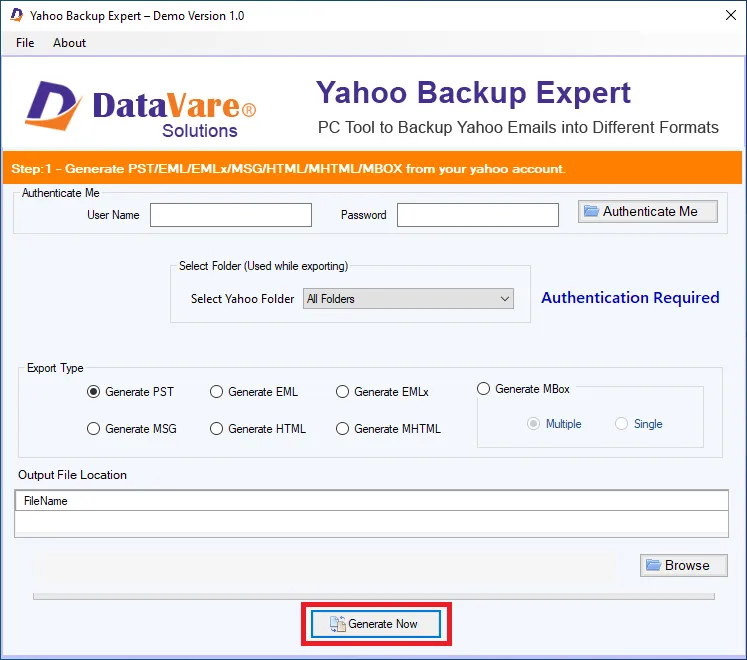
Utilizing the Yahoo Backup Tool can be done as follows-
- The DataVare Yahoo Backup Software is available for download.
- For the logging details, enter them.


- Choose a particular email as well as all emails to use as a backup.
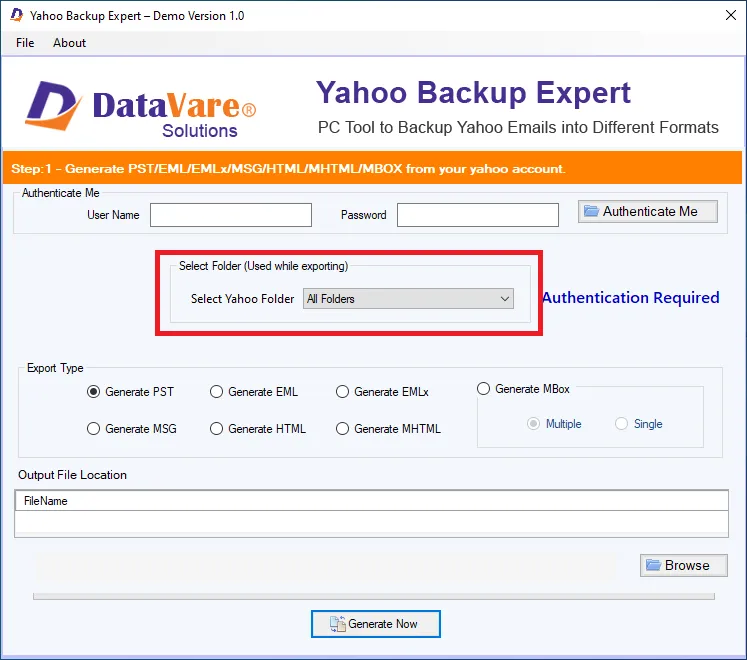
- Use the dropdown menu to select the output type you want to use.

- Choose the location where you will save it.

- Click the tab labeled “Backup Now.”
Highlights of Tool
- Emails from Yahoo can be exported to PST, MBOX, EML, MSG, and PDF formats.
- The integrity of emails can be preserved by ensuring that attachments, metadata, and folder hierarchy are maintained.
- It is possible to perform mass email backups for many Yahoo accounts using the Batch Backup Option.
- Make backups of specific emails by using filters that include folders and date ranges.
- Easily import your Yahoo email into other email clients such as Outlook, Thunderbird, and WLM.
- The design is easy to understand for people with varying levels of technical expertise.
- Immediate and Secure Backup maintains the formatting of the email and ensures that no data is lost.
- The software is compatible with all versions of macOS and Windows, including Windows 11, 10, 8, 7, and earlier versions.
- Get a feel for the tool before you commit to purchasing it.
- Consult with a trained specialist at any time.
Final Words
The process of backing up your Yahoo emails to an external hard drive on your Mac is a simple yet necessary step that you should take to guarantee the safety of your Yahoo emails. While you have the option of using the manual method with Apple Mail for a few emails, you also have the option of looking into DataVare Yahoo Backup for a solution that is more effective if you have numerous emails. By conducting backups regularly, you may protect yourself from the loss of important data and make certain that you can readily access your emails whenever you need to. The methods that are outlined in this article will assist you in selecting the method that is most appropriate for you and will guarantee that your Yahoo emails will continue to be protected.