

Why need to reset Windows password?
Reset Windows password is the process of changing an existing password for a user account in a Windows operating system. There are several reasons why you might need to reset your Windows password:
Forgotten password: You may forget your password due to various reasons such as not using the computer for a long time or simply forgetting it.
Security concerns: If there is a suspicion that the password has been compromised, reset it to prevent unwanted access.
Administrative changes: System administrators might need to reset passwords as part of routine maintenance, especially in managed environments like schools or businesses.
Malware attack: Malware or virus attacks can cause system issues and may require you to reset your password to regain access to your computer.
System updates: Sometimes, system updates can cause issues with your login credentials, and resetting the password can resolve these issues.
Get the reliable Windows password reset tool – AOMEI Partition Assistant
No matter you’re using a Microsoft online account or a local account on your PC, there are always solutions to reset PC password. The following content will focus on local account password reset. In addition to using Windows built-in utility, we recommend you to apply a professional password reset tool called AOMEI Partition Assistant. It is a powerful and versatile tool that offers a wide range of disk partition management features, including the ability to reset Windows passwords. Here are some of its advantages:
- User-friendly interface: AOMEI Partition Assistant boasts a straightforward and intuitive user interface, making it accessible even for beginners. The simple, yet effective design ensures that users can navigate and perform complex operations with ease.
- Password reset functionality: The password reset feature is a lifesaver for those who have forgotten their administrator or user account passwords. With AOMEI Partition Assistant, resetting a password is a straightforward process. Users can create a bootable disk and easily reset the password from the boot menu without requiring technical knowledge.
- High compatibility: AOMEI Partition Assistant supports a broad range of Windows operating systems including all editions of Windows 11/10/8/7. This ensures that users with different system versions can utilize the password reset feature without compatibility issues.
- Data safety: The password reset process is designed to be non-destructive, meaning users can reset their passwords without risking data loss. This compatibility with data integrity is essential for users who need to retain their existing files and settings.
- Comprehensive partition management: Apart from password resetting, AOMEI Partition Assistant shines in partition management. It allows users to create/format/delete/merge/split/resize partitions and move programs from C drive to D drive effortlessly. These features are invaluable for organizing and optimizing disk space.
In summary, AOMEI Partition Assistant is a robust and versatile solution for disk partition management and Windows password resetting. Its myriad of features, user-friendly interface, and reliable support make it a popular choice among both home users and IT professionals.
How to reset Windows password in Windows 11/10/8/7
In this part, we’ll give you a detailed guide on how to use AOMEI Partition Assistant to reset password Windows 11, 10, 8, and 7. Here are the steps:
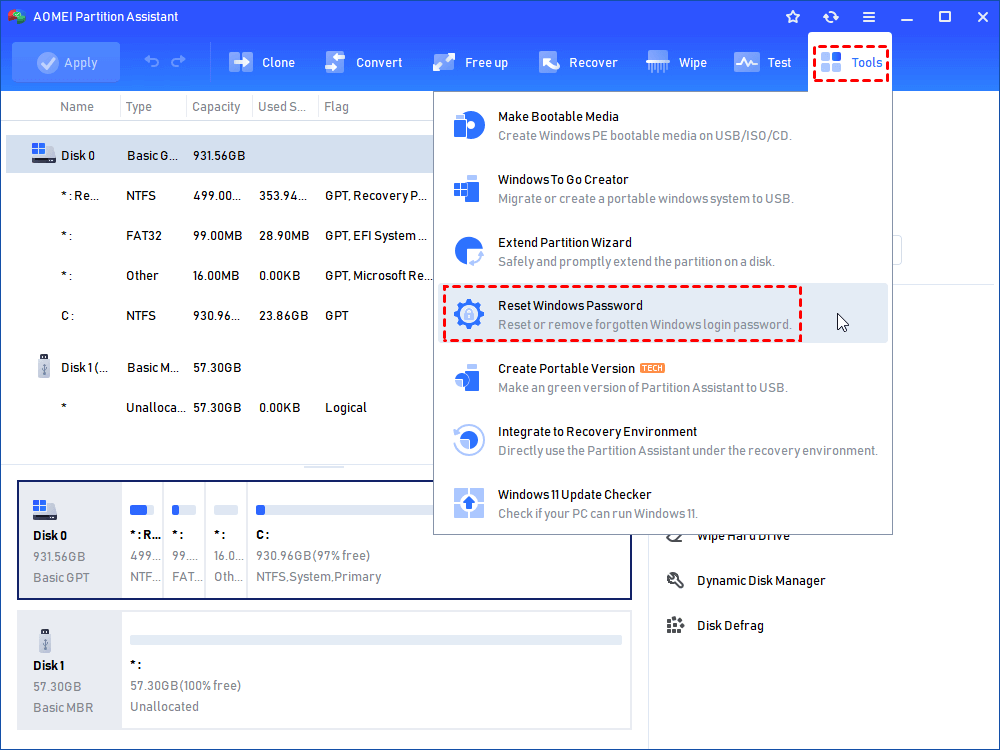
Step 1. Download AOMEI Partition Assistant on a working Windows computer and connect a ready-made USB drive to it. After launching the AOMEI software, click “Tools” and choose “Reset Windows Password” from the main screen.

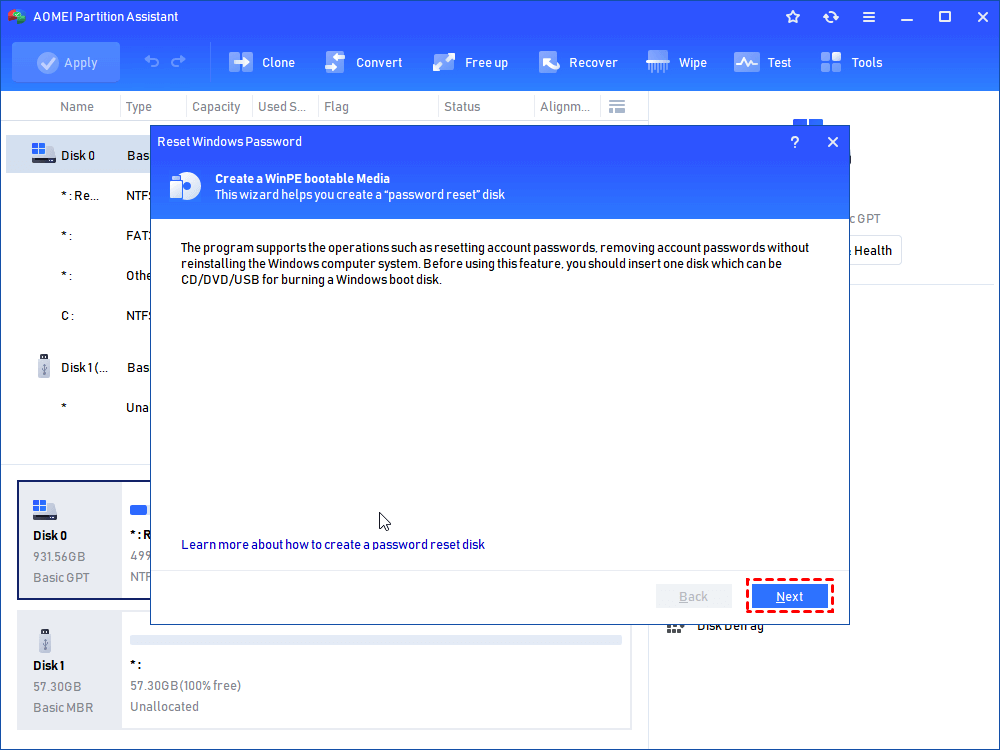
Step 2. A small window will pop out, click “Next” to agree to create a WinPE bootable media.
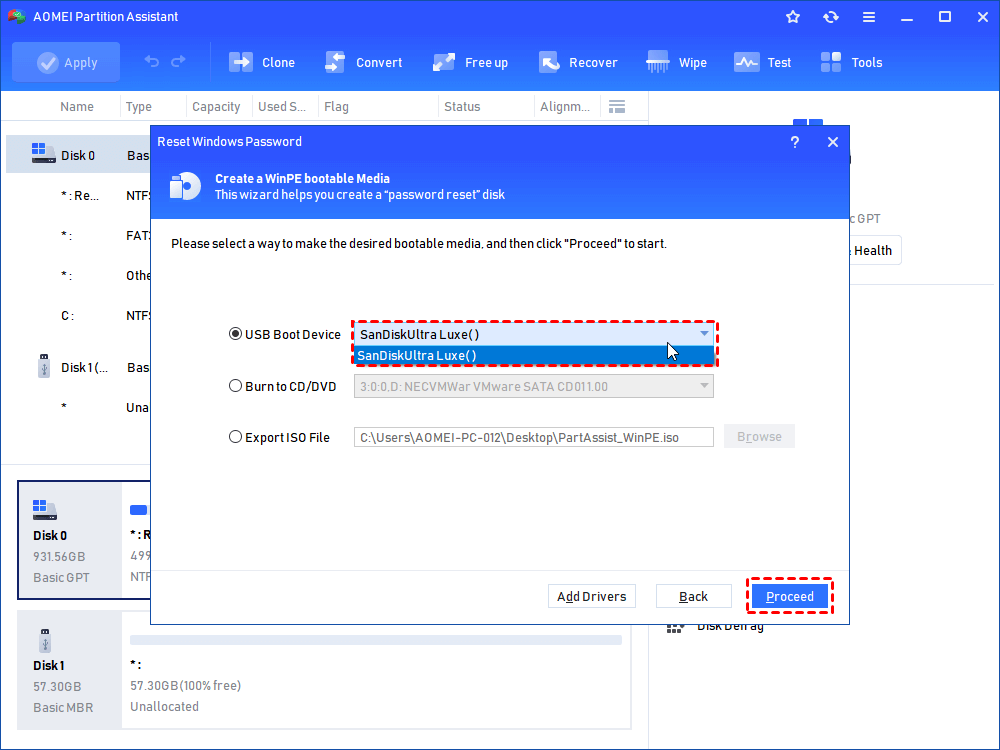
Step 3. Then, choose the target USB Boot drive and click “Proceed” to move on.
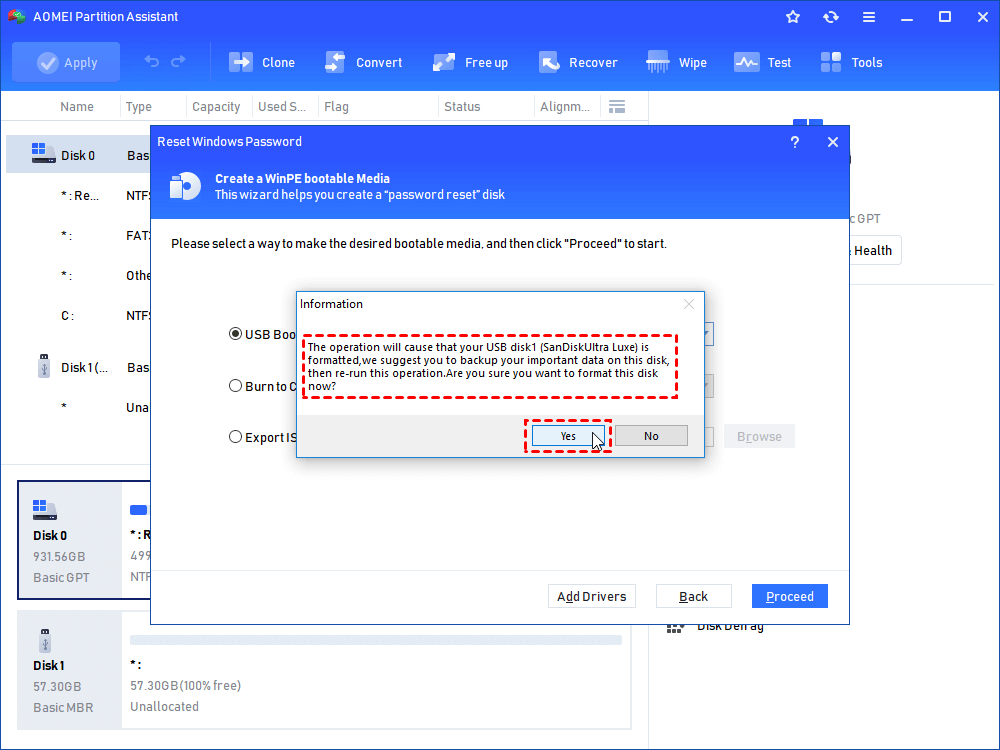
Step 4. Your USB drive will be formatted during the process of creating the password reset USB. If you have backed up the important data or there is no important data on it, click “Yes” to go on.
Step 5. Wait for the tool to create the bootable USB and click “Finish”. Next, remove the USB.
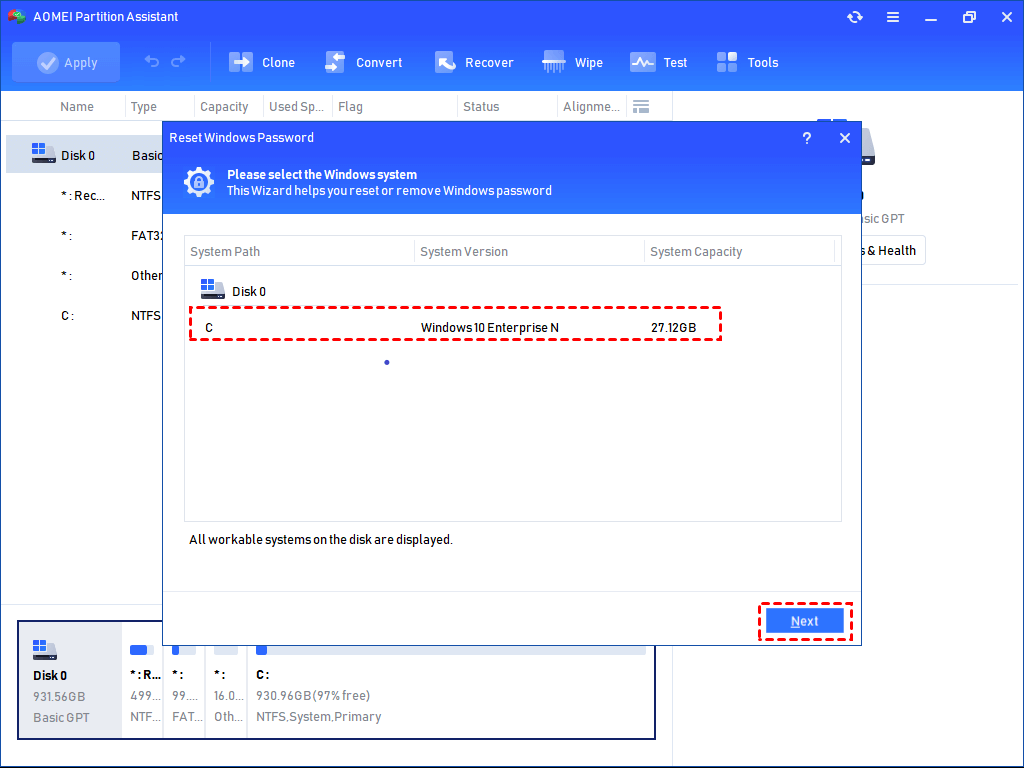
Step 6. Insert the USB drive into the Windows computer where the password needs to be reset and boot your PC from the USB. Then, AOMEI Partition Assistant will open automatically. Click “Reset Windows Password” again and select the target operating system. Then click “Next”.

Step 7. Select the account for which you want to reset the password. Tick “Reset Account Password” and click “Next”.
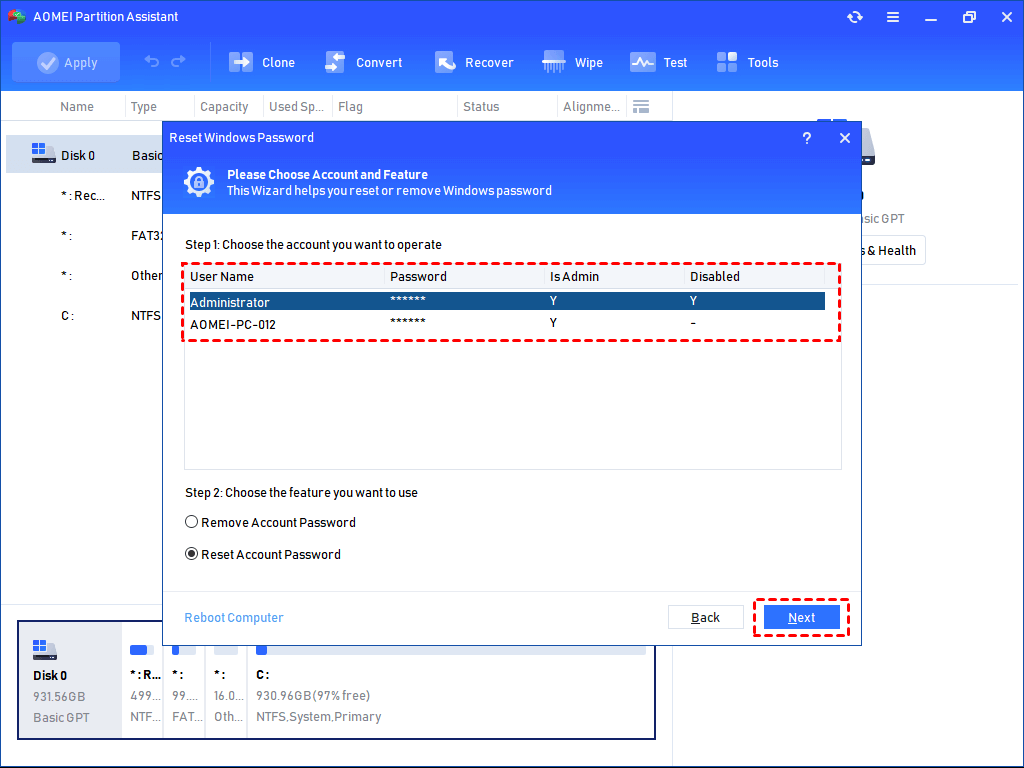
Step 8. In the “Reset Windows Password” window, type the new password and click “Yes” to confirm.

Conclusion
No matter whether you’ve forgotten or lost your Windows password, you can get a reliable password reset tool called AOMEI Partition Assistant from this page. Since 2010, AOMEI Technology has been dedicated to safeguarding global data, assisting over 60 million users worldwide. Download this tool here and create a password reset USB to reset your Windows password now!