

Summary: Do you want to access Google Takeout emails in Windows Outlook but are unable to get the perfect way? If yes then you should read this complete article. This blog explains the best technique with a simple procedure to instantly convert Google Takeout (.mbox) files to PST format with all data. So, let’s start with how to transfer all emails from Google Takeout to Windows Outlook securely.
Google Takeout is a very crucial service by Google, which allows users to take their current Google data and pack it together in an archive file.
It is an assortment you finish with your Google account at any time – this includes all the pages you save, all your Gmail emails, YouTube recordings you have seen, the drive documents you transfer, and the top of the iceberg.
As you realize that MS Outlook is the most used email application these days, most users prefer to use Outlook to store, get and send messages.
Outlook works with PST format, to execute email messages in Outlook, you first need to import Google Takeout emails in Outlook PST.
Before going through the conversion process, we should understand the reasons why users transfer Google Takeout Emails to Windows Outlook.
Why do Users Convert Google Takeout emails into Outlook PST format?
Users transfer Google Takeout emails to Outlook PST format for several reasons such as:
- Email Management – Outlook offers better email organization and productivity features compared to Gmail.
- Offline Access – Outlook allows users to access e -mail even without internet connection.
- Business & Professional Use – Many organizations use Outlook as their primary email client, making migration necessary for work-related communication.
- Better Integration – Outlook is well integrated with Microsoft Office apps such as Team, Word and Excel, and improves the efficiency of the workflow.
Extract Google Takeout data into MBOX format
Before starting the process first, we extract the Google Takeout data into MBOX file format.
- Run Google Takeout in your Operating System.
- Deselect all the options.
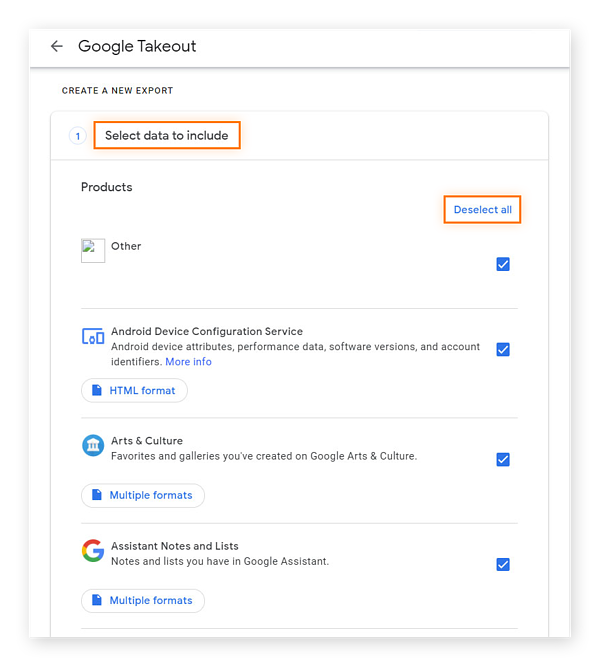
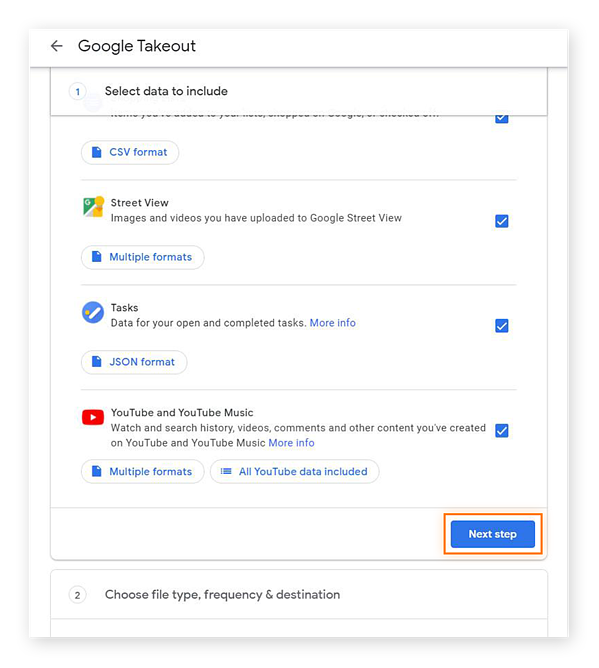
- After that, choose the needed data.
- Click on the ‘Next Button’
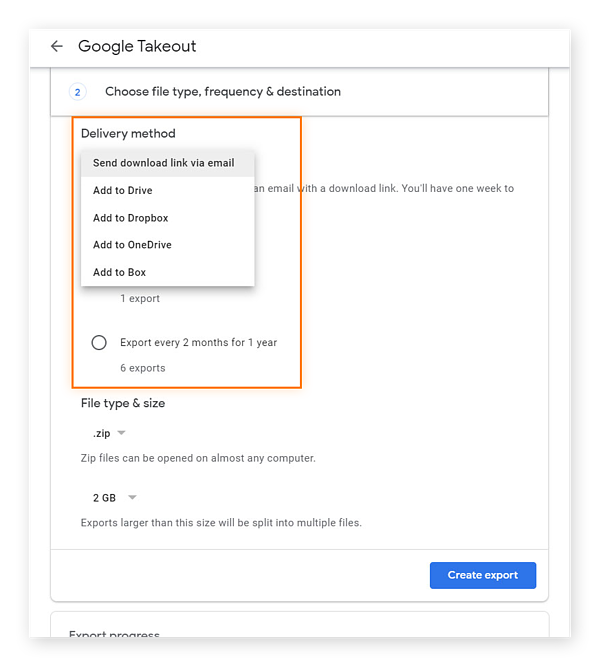
- Choose the Delivery Method to receive or save data.
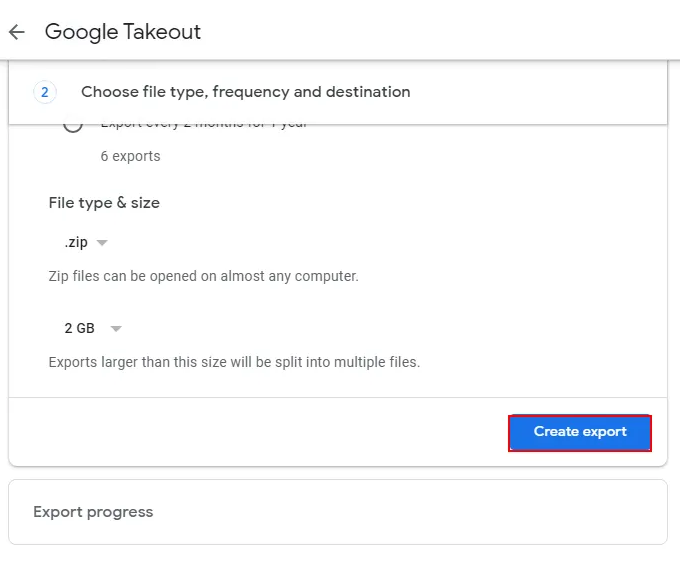
- Select the File Type between .zip and .tgz.

- Select the size of the file and click on the Create Export button.


After a few days, your backup data will show on the selected location those you choose. Then, now you have to extract the zipped file by right-clicking on it and choosing the Extract Folder Here option. You will receive your folders in.mbox format after unzipping.
Techniques to Convert Google Takeout (.mbox) files into Outlook PST format
After extracting the Google Takeout data into MBOX files. We converting the MBOX files into PST format to access Google Takeout emails into MS Outlook.
Manual Method to Convert MBOX files of Google Takeout into PST format
We all know that the Mozilla Thunderbird email client supports the MBOX file format and also allows users to connect with a Microsoft Outlook Account. So, we will utilize Thunderbird to import Google Takeout MBOX files into Outlook PST.
Step1: Import Google Takeout MBOX files into Mozilla Thunderbird
- Run the Thunderbird email client on your system.
- Add the “ImportExportTools NG”.
- To import MBOX files, select Tools >> ImportExportTools NG.
- Select “Import Directly One or More MBOX File” from the menu.
- Browse the unzipped Takeout MBOX file.
- Lastly, click on the Open button.
Step2: Connect Mozilla Thunderbird to MS Outlook
- Restart the e-mail service.
- Go to Tools or Menu >> Import option.
- Select after importing from Outlook >> Continue.
- Check the mail messages option and then proceed.
- Finally, click the Start Import button.
- And then, hit the finish icon.
Now right-click on the uploaded Takeout file Select Move to and then select the connected Outlook account and folder.
Step3: Convert Google Takeout to Outlook PST
- Then open your Outlook.
- Hits on the File tab from the top.
- Select Open and Export >> Import/Export Option.
- Select export to a file from the viewing list.
- Select according to the Outlook Data File (.PST) option.
- Select the folders, which you want to export.
- Browse the location and activate the required filters.
- Finally, hit the finish button.
And your Google Takeout data in PST format. As you can see, how easy it is done. But this technique has some disadvantages, all of which are given below in detail:
Drawbacks of Manual Technique
- Outlook for connection should be installed on the same system.
- Installing the Thunderbird email software is also necessary in order to import Google Takeout into Outlook.
- Technical knowledge about both email services is necessary.
- You cannot process bulk data files at once.
- To complete this task, you have to follow several stages.
Expert Solution to Convert Google Takeout MBOX files into PST for Outlook
The above method may be helpful for some users who are technically inclined or proficient but those who are not face lots of issues. So, rather the using a risky, you can utilize a professional tool like Softaken MBOX to PST Converter Software. This application seamlessly converts any size of Google Takeout MBOX files into Outlook PST format without compromising any data. This utility converted all PST files and is easily accessible in all versions of Windows Outlook 2021, 2019, 2016, 2013, 2010, and older ones.
Simple Steps to Change Google Takeout MBOX Files to PST
- Install the Converter for MBOX Software
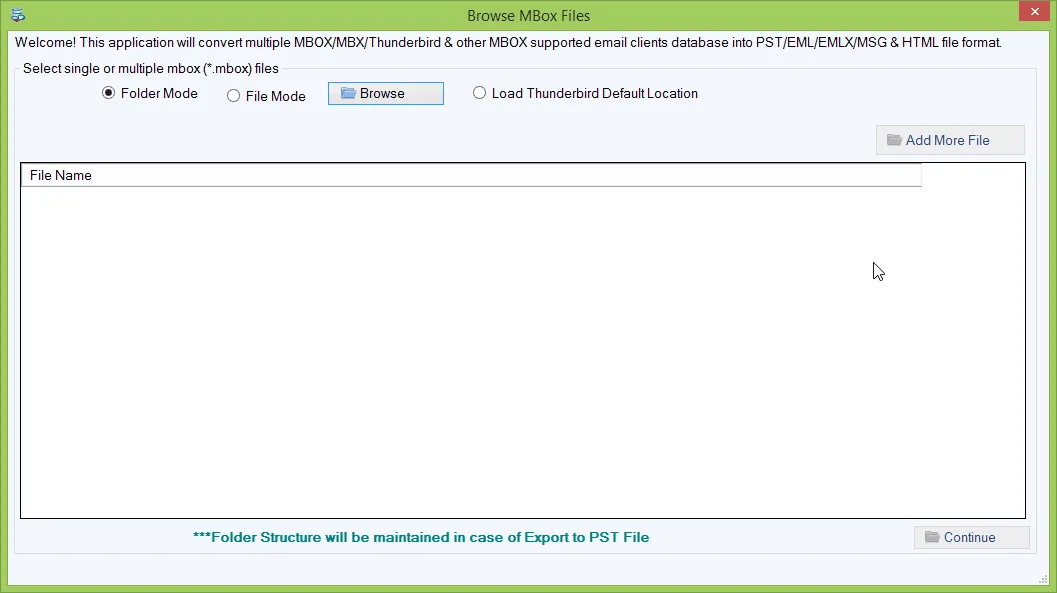
- Browse and add the MBOX files of Google Takeout
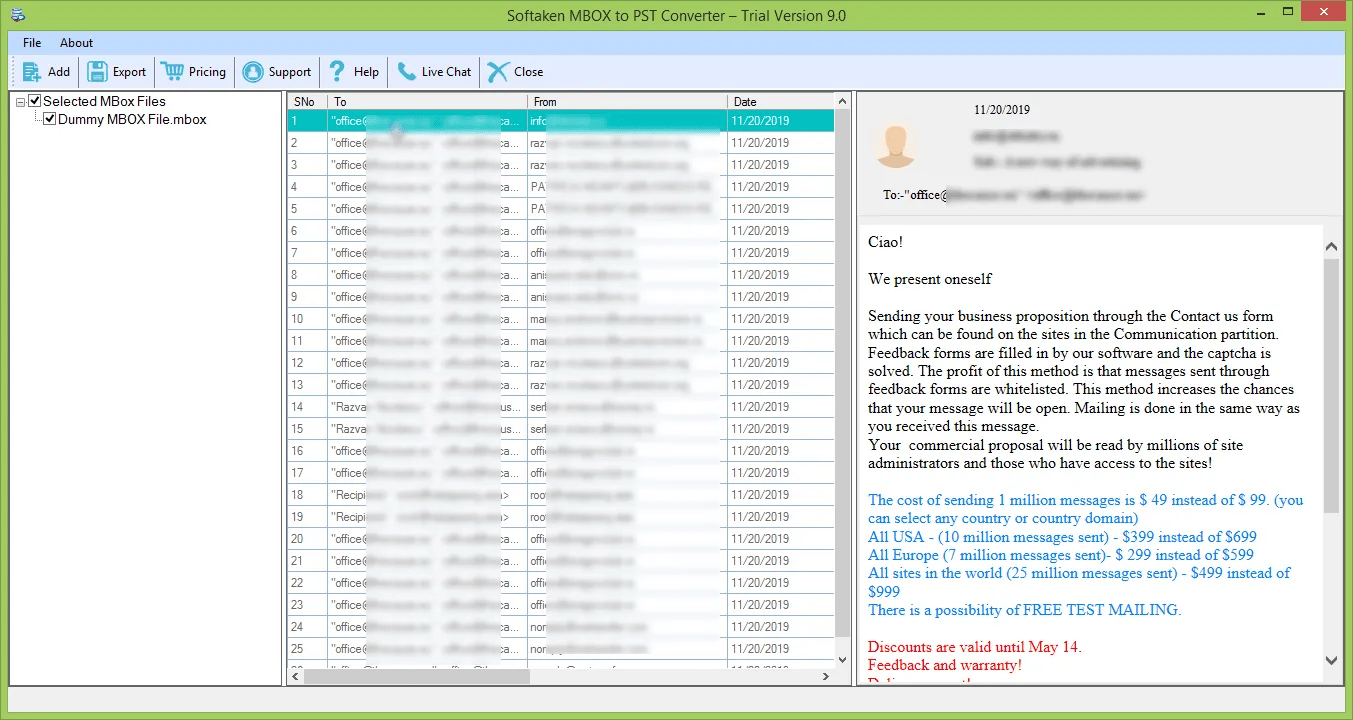
- Take a complete preview of the added data
- Choose the filter options according to your requirement
- Browse & choose the desired location
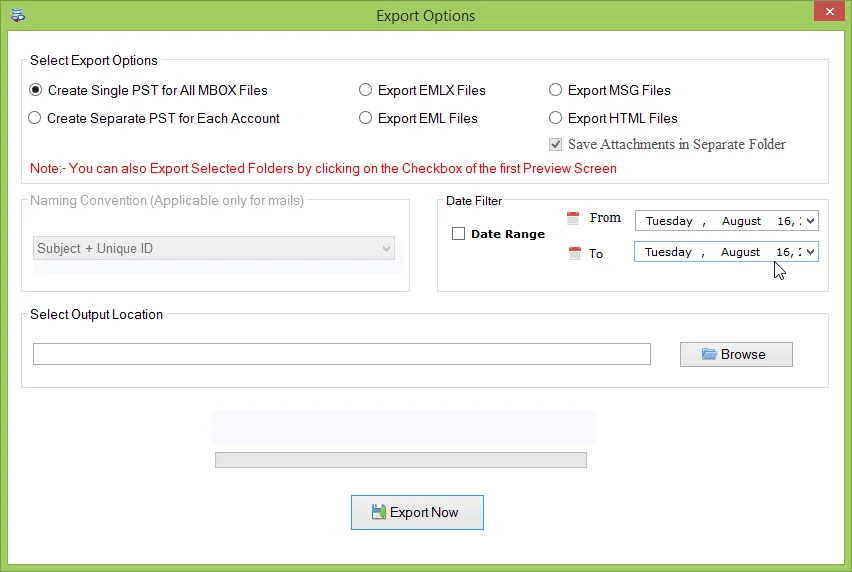
- Finally, click on the Convert Button to start the conversion process


Conclusion
In this article we discussed about the reasons and how to access Google Takeout .mbox data into Outlook safely. We mentioned the two methods for converting the Google Takeout MBOX files into Outlook PST format – manually or automated way. The automated tool – MBOX to PST Converter Software is recommended by the expert for safer and secure conversion.
Related Questions Asked by the Users
- Can I open Google Takeout MBOX files in Outlook?
- How do I transfer my Gmail emails to Outlook using Google Takeout?
- How do I import Google Takeout emails into Outlook?